
Check only the ones that need you.
Every receipt and invoice is checked as it is read, so you check by exception. Clean ones from suppliers you know are approved straight away, and the rest say why they need you.
Free for 14 days, up to 50 documents. No card needed.
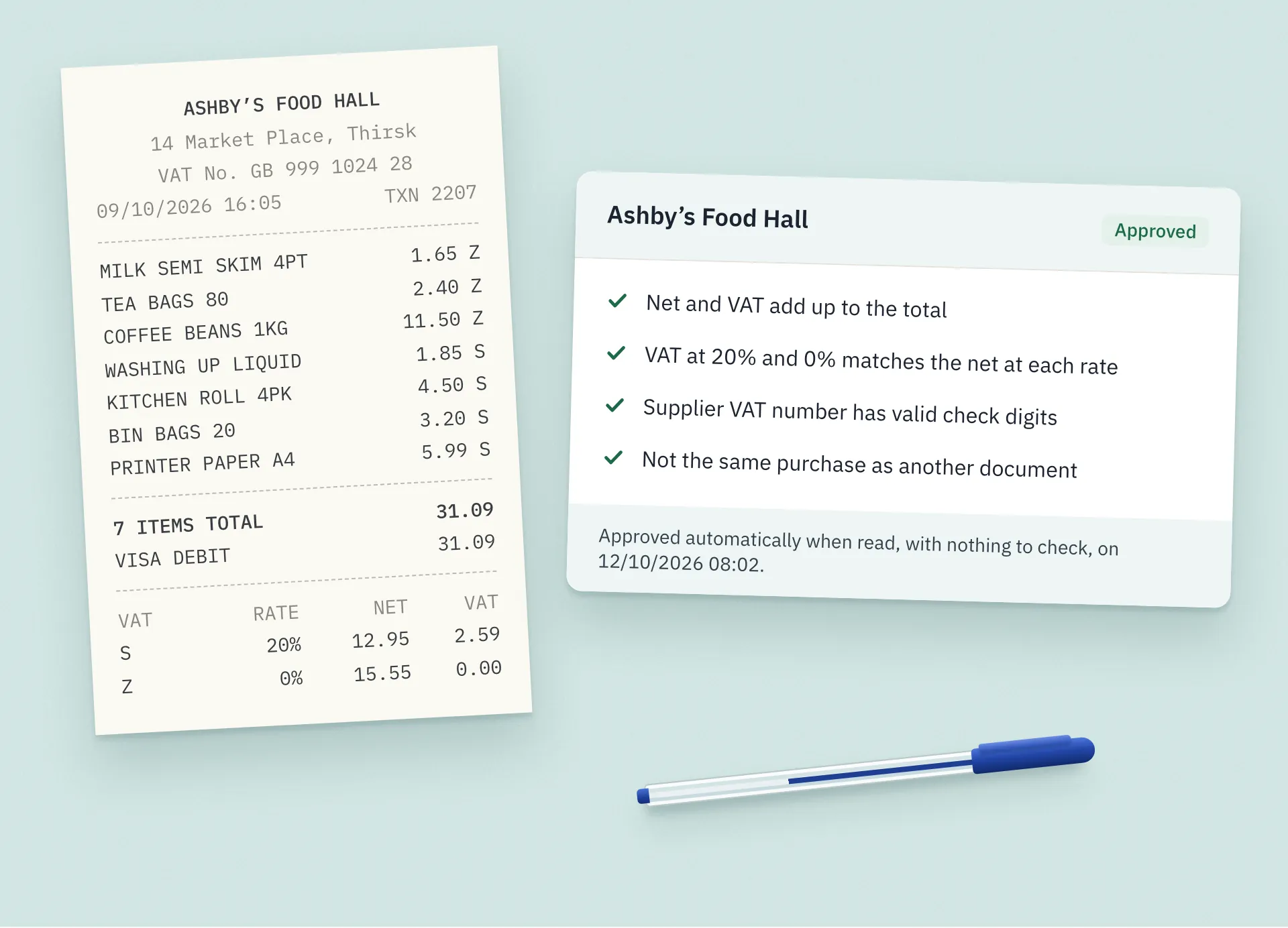
What holds a document back.
A document goes to review when one of these checks fails, and it says which.
- Figures that do not add up
- Net and VAT against the total, the VAT for each rate against the VAT total, and the line items against the total.
- VAT that cannot be right
- More VAT than the rate printed allows (20% when none is printed), or a rate that is not a UK rate.
- A VAT number to look at
- One with check digits that do not match, none read although VAT is charged, or the client’s own, which means supplier and buyer were mixed up.
- A date to look at
- In the future, often a day and month swapped, or more than four years ago, when the VAT can usually no longer be reclaimed.
- Made out to another company
- VAT can only be reclaimed on invoices made out to the business.
- Something missing or unsure
- No total, date or supplier found, a value the reading was not sure of, or a file that is not a receipt at all.
- A copy, or a photo hard to read
- The same purchase as another document, or a receipt cut off, hard to read or with handwritten amounts.
The original beside the figures.
The photo or PDF sits beside the fields, with zoom and rotate. A value the reading was unsure of is marked, and the checks run again as you type.
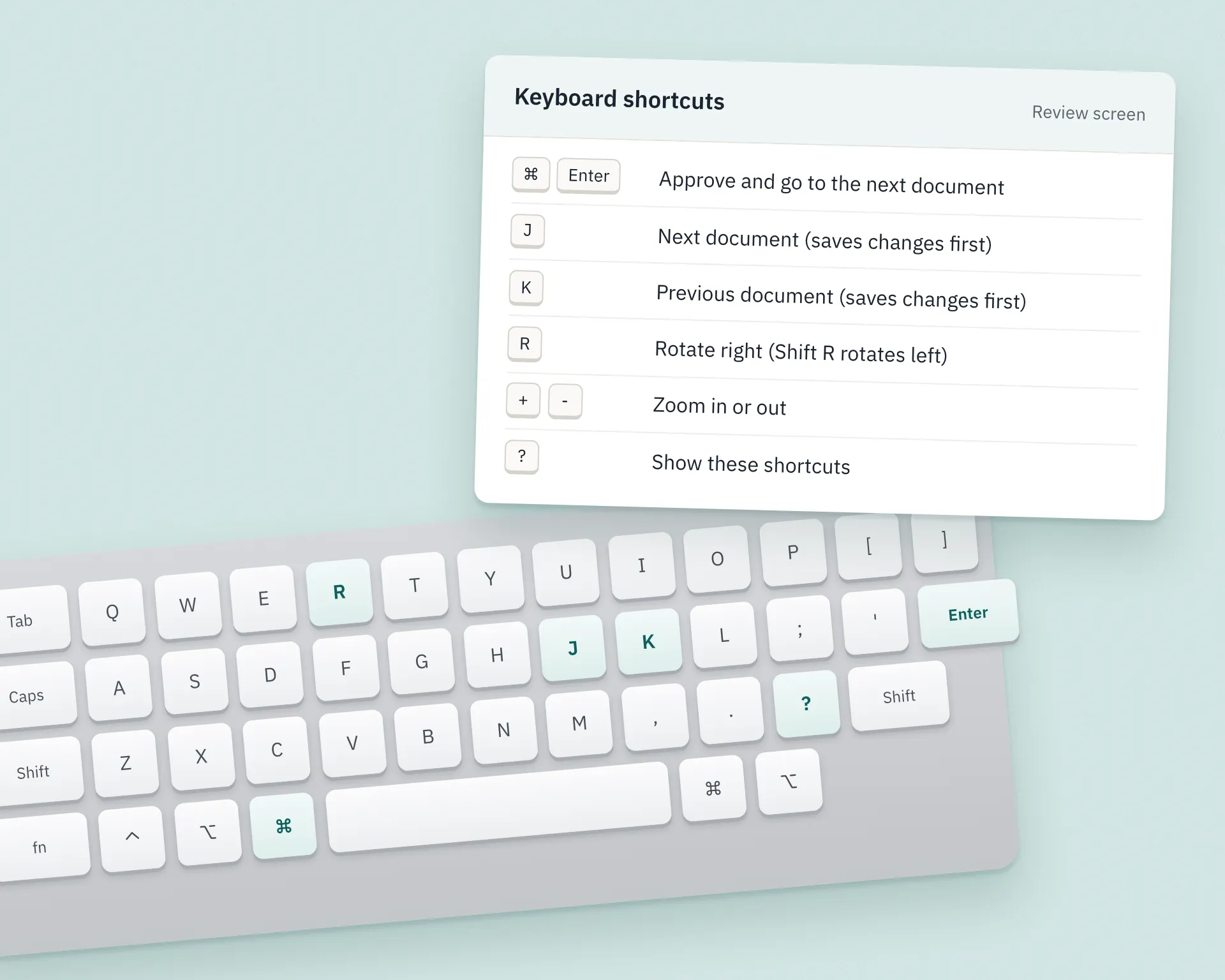
Approve and move on from the keyboard. The category you choose for a supplier can be saved as its rule, for every document from them after.
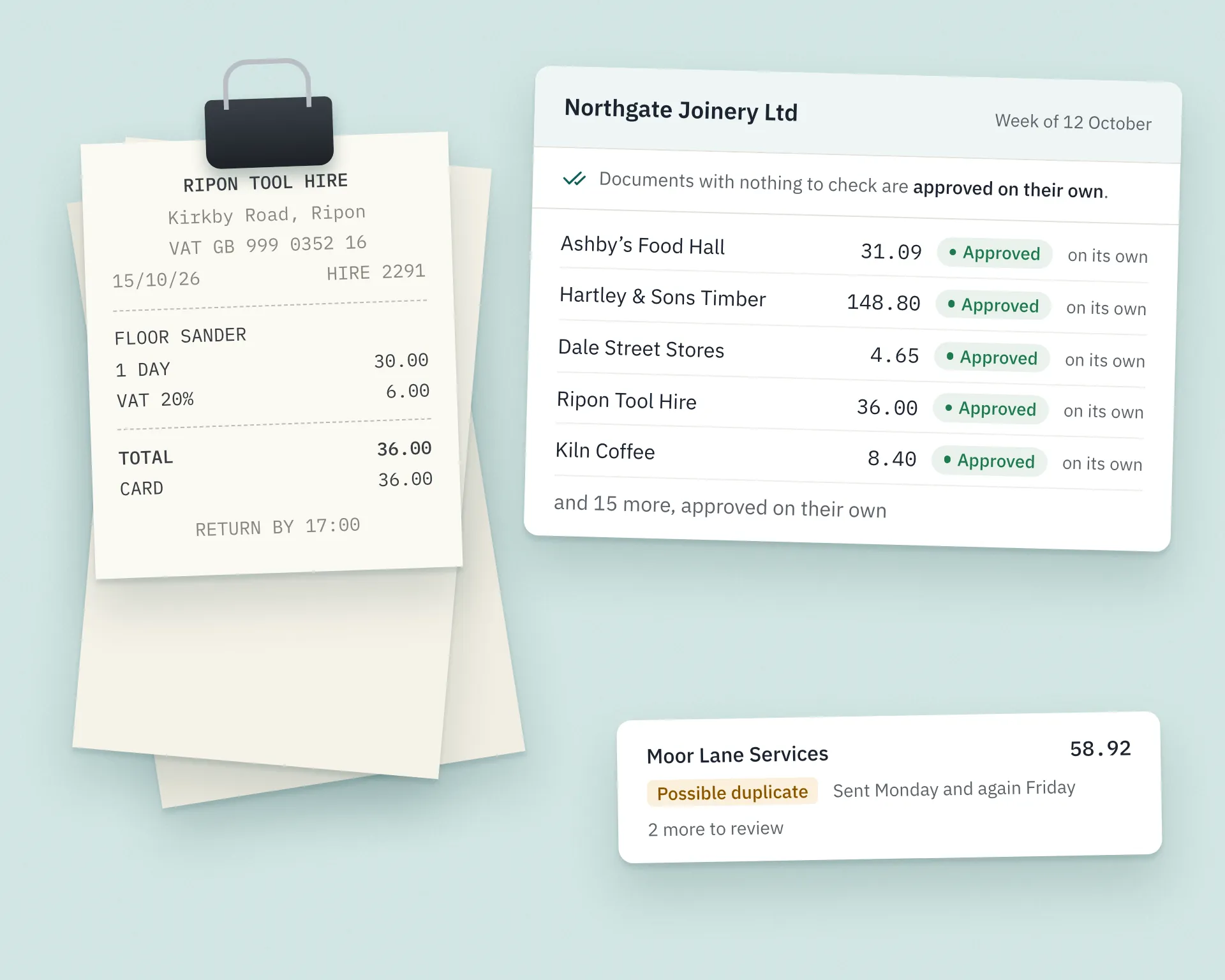
Approved as they are read.
A document read cleanly that passed every check is approved straight away, and the list marks it as approved on its own. Possible copies, other currencies, documents with no category and the first document from a supplier wait for you: once you have approved one from a supplier, the clean ones after it go by themselves.
Rather look at a client’s documents first? Turn it off for that client: the clean ones wait as Ready, and Approve ready takes a week of them in one go, with Undo straight after.
Approving figures that still fail a check, such as a total that does not add up, asks first. Every approval is in your firm’s audit log, with who made it and when.
Questions about review.
Does a person approve every document?
Only if you want them to. A document with nothing to check is approved as it is read: the figures add up, the date, total and category are there, it is in the client’s currency, it is not made out to another company, it is not a possible copy, and someone in your firm has approved a document from that supplier for the client before, or set a rule for the supplier. Everything else waits for someone in your firm. Turn it off for a client and every document waits, with the ready ones approved in one click.
Can I approve a document that fails a check?
Yes, when the document really shows those figures. Where the figures fail a check, Daybook asks first, and the approval is recorded like any other.
Which keyboard shortcuts are there?
Command or Control with Enter approves and opens the next document, with Shift it approves and stays. J and K move between documents, R rotates, plus and minus zoom, and the question mark lists them all.
Can I undo an approval?
Straight after, with Undo. Later, an approved document goes back to review with one click, until it has been exported.
Check your first week.
Upload a week of one client’s receipts, approve the first from each supplier and look at what was held back. From then on, the clean ones are approved as they are read.
Free for 14 days, up to 50 documents. No card needed.