
Turn a bank’s CSV into the file your software takes.
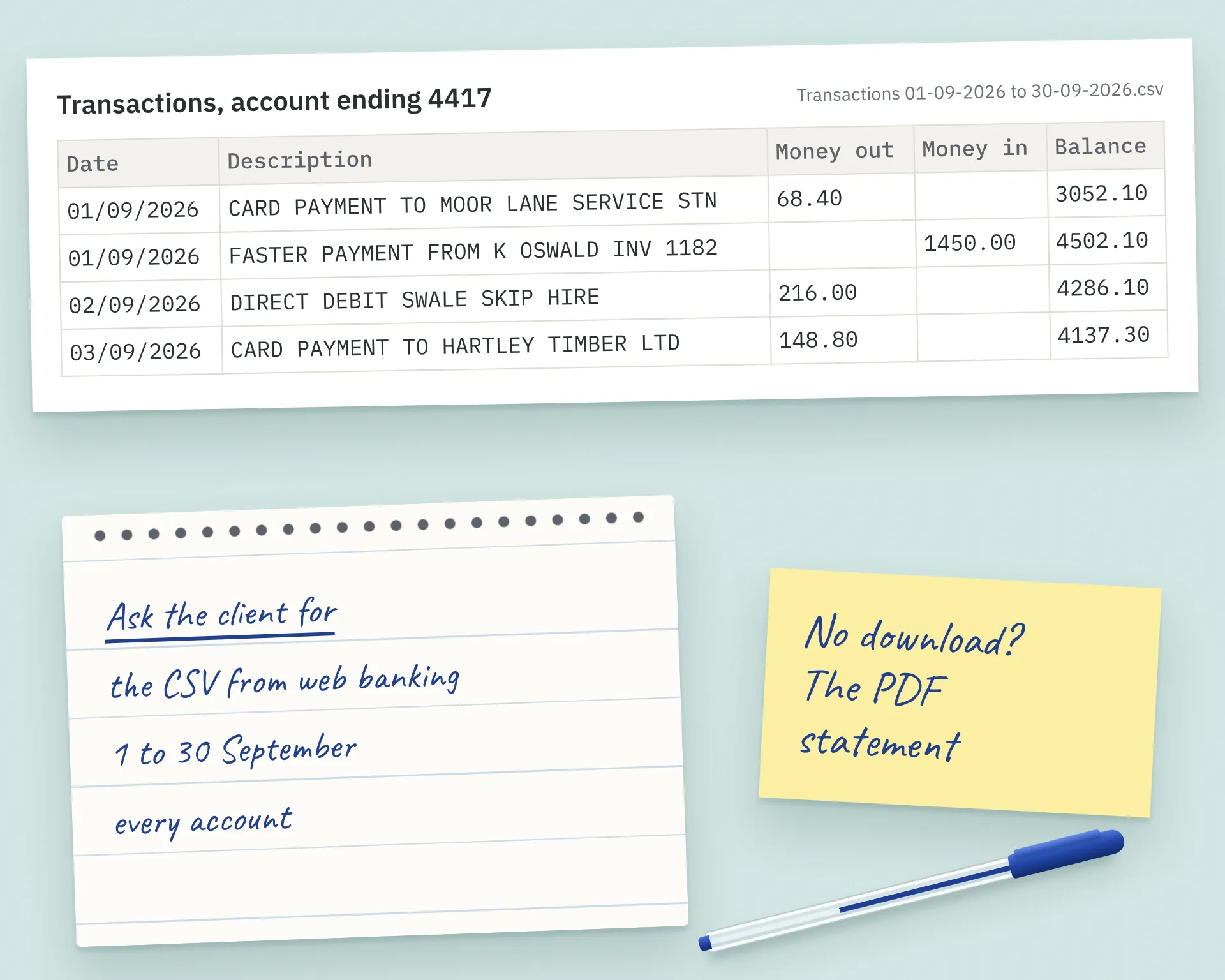
Choose the transactions file a client downloaded from web banking. The converter finds the columns, checks every balance, and gives you the bank statement file for Xero, QuickBooks Online, FreeAgent, QuickFile, Sage 50 or VT Transaction+. It runs in your browser and never sends the file anywhere.
Convert a bank file.
Choose the file, or try the example. Check the lines and the balances, choose the program, and download.
A CSV or Excel (.xlsx) file of transactions, downloaded from web banking. It is read in your browser and never sent anywhere.
Each program’s bank file.
- VT Transaction+
- Date, Details, Payment and Receipt, for the Universal Input Sheet’s bank statement options, in pounds (VT help (opens in a new tab)).
- Xero
- Date, Amount and Payee, money out negative, and no balances: Xero works the balance out from the lines (Xero Central (opens in a new tab)).
- QuickBooks Online
- Date, Description and Amount in three columns, up to 1,000 lines an upload (QuickBooks (opens in a new tab), upload (opens in a new tab)).
- FreeAgent
- Date, amount and description with no header row, and no commas or quote marks in the description (FreeAgent (opens in a new tab)).
- QuickFile
- Transaction date, description and one amount column, marked in QuickFile’s preview (QuickFile (opens in a new tab)).
- Sage 50 Accounts
- Date, Description and Amount, imported through Bank Feeds in v30.1 and later (Sage (opens in a new tab)).
- CSV or Excel
- Date, Description, Money out, Money in and the bank’s balance, for anything else.
Every balance checked.
When the bank’s file has a balance column, each line’s balance is worked out from the one before and its own amount. The first line where they differ is named, with both figures, before anything goes into the books.
On a credit card the balance is what is owed, so spending raises it. Tick credit card and the money out is still written as money out, as each program’s card accounts take it.
Bank files it reads.
- Headings or none
- Columns are found from their headings, or from what is in them; lines about the account above the headings are skipped.
- Any date and amount
- 01/09/2026, 2026-09-01 or 1 Sep 2026; one amount with money out negative, or money out and money in apart; pound signs, thousands, brackets, DR and CR.
- Newest first
- Turned round, oldest first, as the programs take them. Brought forward rows, totals and lines of 0.00 are left out.
- Up to a size
- CSV, or an Excel workbook (.xlsx, its first sheet), up to 5 MB and 5,000 lines. Not the older .xls, OFX or QIF.
Questions about converting bank files.
Is my bank file sent anywhere?
No. It is read by your web browser, converted there and saved straight to your computer. Nothing goes to Daybook or anyone else, and this website sets no cookies.
Can it convert a PDF bank statement?
Not here: it takes the bank’s own CSV or Excel download. Daybook reads PDF and paper statements, checks every balance and writes the same files (bank statements).
Why does it say the balance stops agreeing?
The balance on that line does not follow from the line before and its own amount. A line may be missing from the download, the money out and money in columns may be the wrong way round, or the file is a credit card’s, where spending raises the balance: tick credit card.
What if the import goes wrong?
Each program’s steps on the page end with how to take an import back. Xero deletes a whole statement (Xero Central (opens in a new tab)); Sage 50 ignores lines waiting to be matched (Sage (opens in a new tab)); VT Transaction+ has no undo, so back up first.
Sources
Every fact on this page was checked against these on 19 October 2026.
- Importing from a bank statement (opens in a new tab), VT Transaction+ help.
- Import a bank statement in CSV format (opens in a new tab), Xero Central.
- Delete a bank statement (opens in a new tab), Xero Central.
- Prepare your CSV file for bank upload to QuickBooks (opens in a new tab), QuickBooks UK support.
- Manually upload transactions into QuickBooks Online (opens in a new tab), QuickBooks UK support.
- Format a CSV file to upload a bank statement (opens in a new tab), FreeAgent support, updated 18 October 2026.
- Importing your bank statement (opens in a new tab), QuickFile knowledge base.
- Import bank transactions with Bank Feeds (opens in a new tab), Sage 50 knowledge base, last modified 30 June 2026.
- Bank Feeds: Ignore selection (opens in a new tab), Sage 50 knowledge base, last modified 24 June 2026.
PDF and paper statements too.
Daybook Capture reads a client’s PDF, scanned or photographed bank statements, checks every balance to the penny, and writes the same files for each program.
Free for 14 days, up to 50 documents. No card needed.