
Importing bank statements into Sage 50.
Sage 50 Accounts imports a bank statement file through Bank Feeds, even for an account with no feed. Here are the steps, the date order and Switch transaction types, matching and ignoring the lines, and the audit trail import of bank payments and receipts.
Last updated
In short
- Bank Feeds imports a statement file in v30.1 and above, with or without a feed.
- Choose the date order, and Switch transaction types if money in and out come in the wrong way round.
- Imported lines go to To be matched: match, create or ignore each one.
- The older route is the audit trail import of BP and BR, every line coded.
- A PDF statement has to become a CSV or bank file first.
Daybook reads a client’s PDF or paper statements, checks every balance, and writes the bank file for Sage 50 Bank Feeds. How Daybook reads bank statements
Contents
Importing a bank statement with Bank Feeds
How to import a CSV bank statement into Sage 50
- On the welcome window, select Continue, then Select a file from your device and open the statement file.
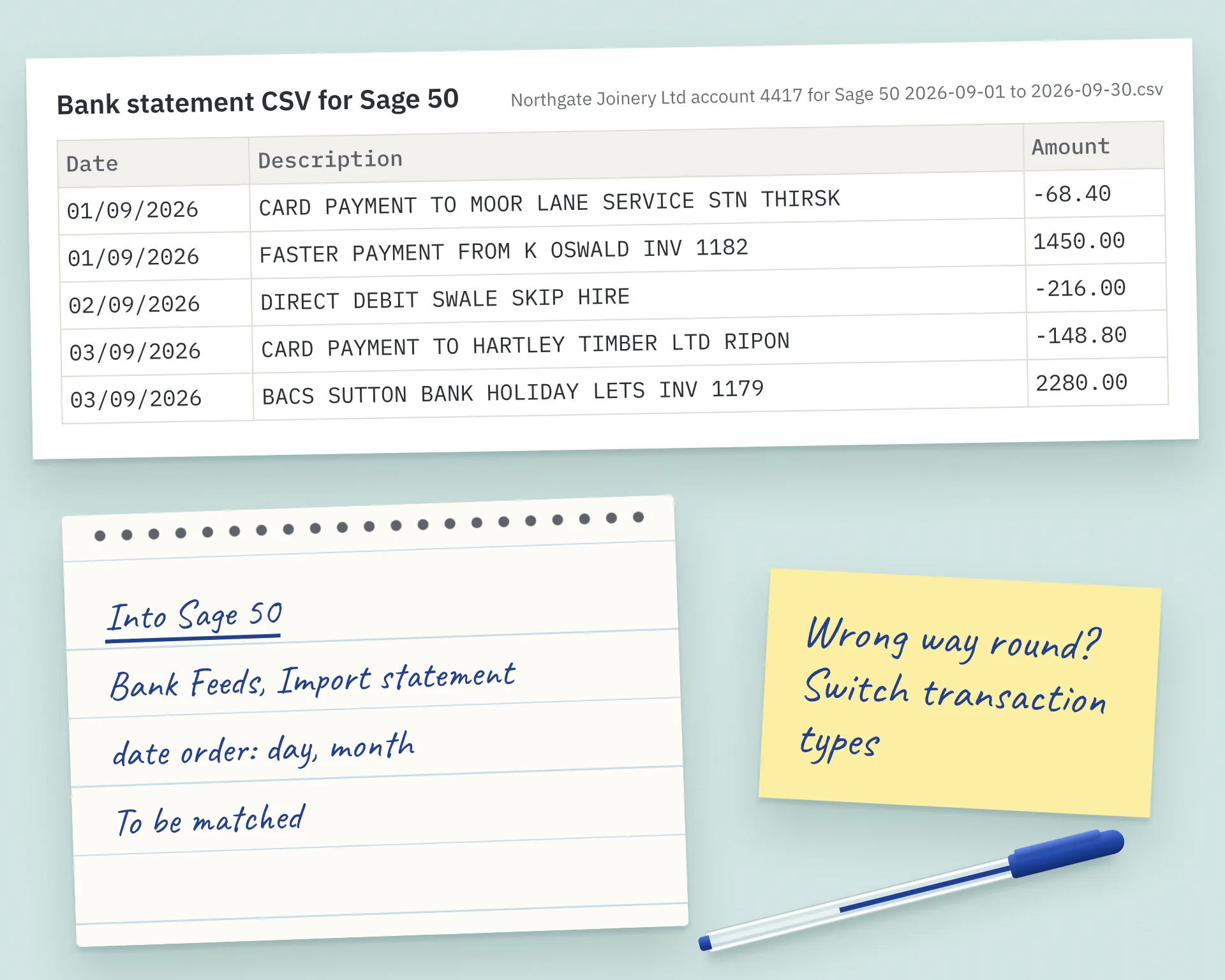
- Click Review transactions. If asked, choose the date order the file uses: for a UK bank, day, month, year.
- Check the lines. If money in shows as money out, click Switch transaction types: Sage turns them round and processes the file again.
- Click Confirm import. The lines go to the To be matched tab.
Each step is in Sage’s own article.1
Matching, creating and ignoring the imported lines
- Matching
- Drag a bank line onto its Sage transaction, or select both and choose Match selection once the difference is 0.00; matched lines move to Confirmed.2
- Creating
- For a line with no Sage transaction, such as a bank charge, select Create on the bank line and choose the type of transaction.2
- Ignoring
- A duplicate, or a line imported by mistake, is selected on To be matched and hidden with Ignore selection; View ignored shows it again.3
Sage describes no undo for a whole import, so check the file before Confirm import, and ignore any lines that should not be there.
Bank payments and receipts through the audit trail import
The older route, for a version without Bank Feeds or for lines already coded, is the audit trail transactions import: BP for a bank payment and BR for a bank receipt.4 A BP is money out of the bank account posted straight to a nominal code; a transfer between two bank accounts is a journal pair, JD and JC, not a payment.5
Each row needs the type, the bank account’s reference as the account, a nominal code and the net amount; the date (DD/MM/YYYY), reference, details, tax code and tax may be left blank, when Sage uses the program date and T0.4 Unlike Bank Feeds, every line has to be coded before it goes in.
A PDF bank statement into Sage 50
Bank Feeds does not list PDF among the files it takes.1 A PDF or paper statement has to become a file it does take, with its balances checked first: see PDF and paper bank statements into your software.
Sage 50 bank files from Daybook
Daybook reads a client’s PDF, scanned or photographed statements, checks every balance, and exports the lines as a bank statement CSV for Sage 50 Bank Feeds: Date, Description and Amount, money out as minus amounts, with the steps above beside the export.
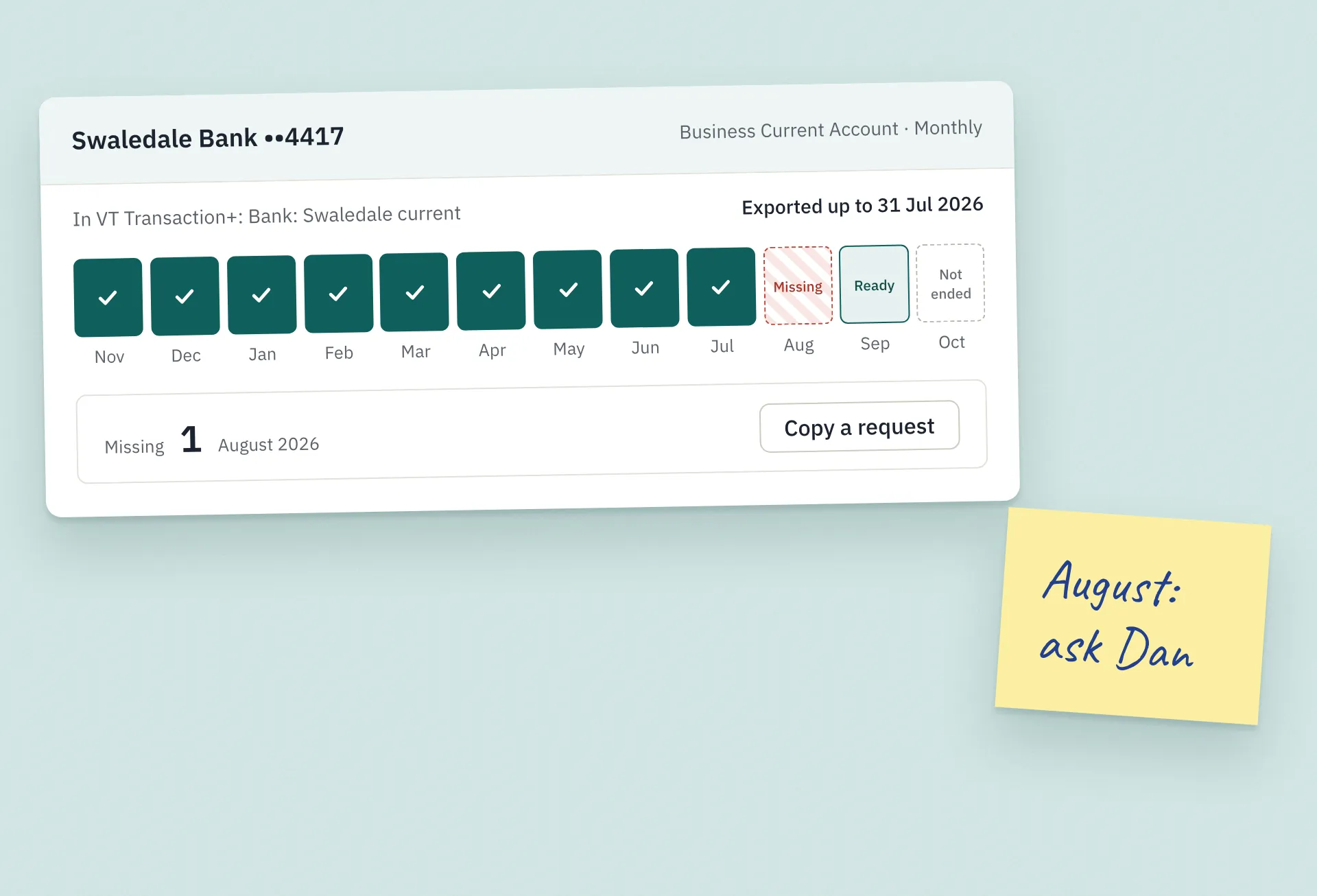
Each account’s statements are shown by month, so a missing month is seen before the file goes in. Only the account’s last four digits are kept (bank statements in Daybook). For purchase invoices, see importing purchase invoices into Sage 50.
Doing this for clients every month? Try Daybook on one client’s month: free for 14 days, no card needed.
Questions
Can you import bank statements into Sage 50?
Yes, through Bank Feeds in v30.1 and above, with or without an automatic feed, from CSV, OFX, QIF, XLS and other bank formats.1
Why does money in show as money out after importing into Sage 50?
The file signs them the other way. On the Review transactions window, click Switch transaction types and Sage turns them round.1
How do I remove imported bank transactions in Sage 50?
Select them on To be matched and choose Ignore selection; they can be viewed and brought back later.3
Read next
- Downloading bank transactions as CSVWhat HSBC, Lloyds, NatWest, Santander, Monzo, Starling and others offer, and how far back.
- PDF bank statements into your softwareWhat each program imports, converting a PDF or paper statement, and checking the balances.
- Importing purchase invoices into Sage 50The audit trail template, supplier A/Cs, tax codes, grouped invoices and import errors.
- How Daybook reads bank statementsThe same job in Daybook Capture, for every client.
Sources
Every fact on this page was checked against these on 18 October 2026.
- Import bank transactions with Bank Feeds (opens in a new tab), Sage 50 knowledge base, last modified 30 June 2026.
- Bank Feeds: matching transactions in v29.2 and above (opens in a new tab), Sage 50 knowledge base, last modified 3 July 2026.
- Bank Feeds: Ignore selection (opens in a new tab), Sage 50 knowledge base, last modified 24 June 2026.
- Audit trail transactions data fields you can import (opens in a new tab), Sage 50 Accounts knowledge base, last modified 21 March 2025.
- Transaction types (opens in a new tab), Sage 50 knowledge base, last modified 21 July 2026.