
Importing purchase invoices into Sage 50.
Sage 50 Accounts imports purchase invoices from a CSV file, as audit trail transactions. This guide shows how to import purchase invoices into Sage 50: the template, supplier A/Cs, nominal and tax codes, invoices with several lines, and the errors that stop an import.
Last updated
In short
- Back up, then File, Import, Audit Trail Transactions, from CSV or Excel. Nobody else can be logged in.
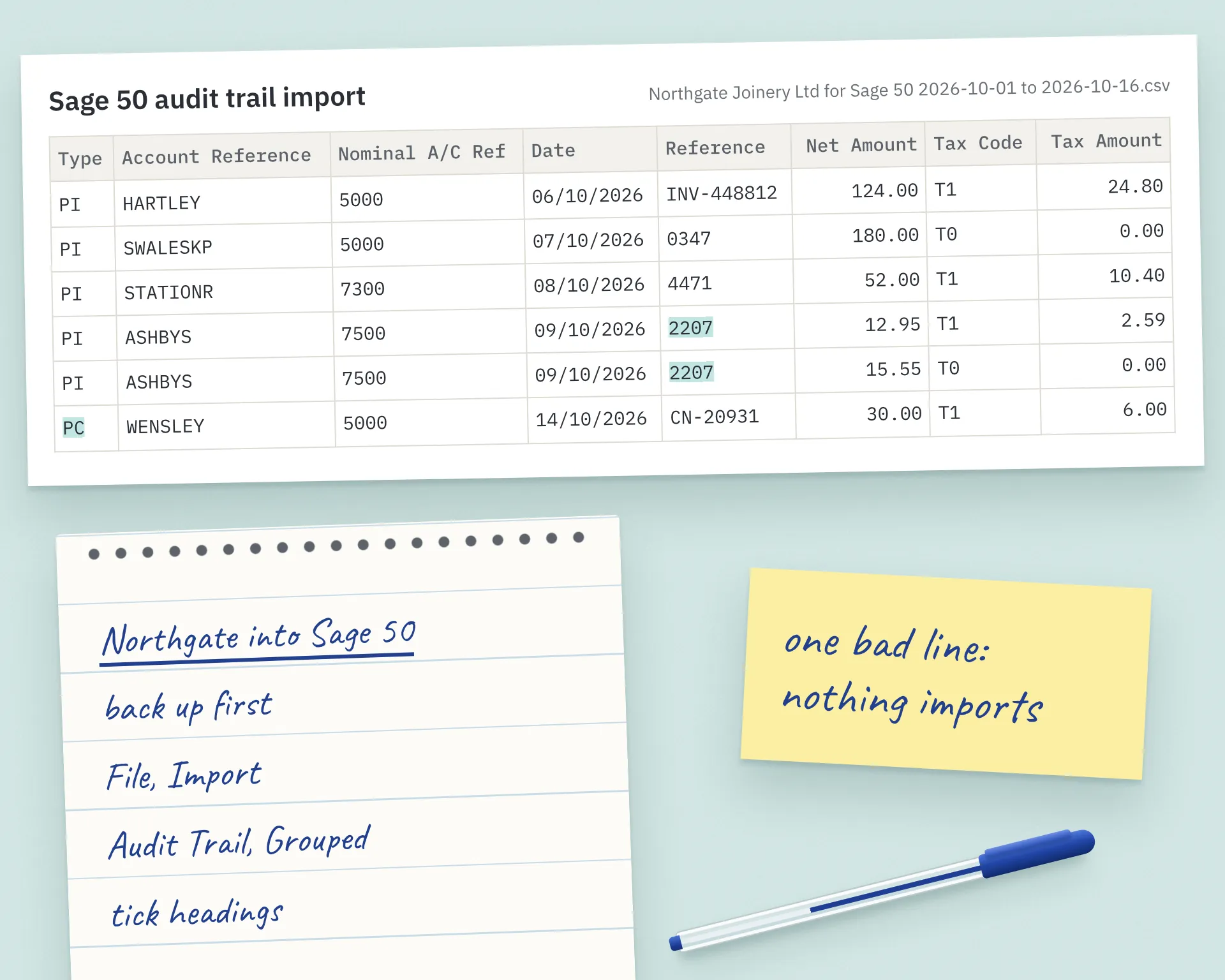
- Each line: Type PI (or PC for a credit note), the supplier’s A/C, the nominal code, the date as DD/MM/YYYY, the reference, the net, the tax code and the VAT.
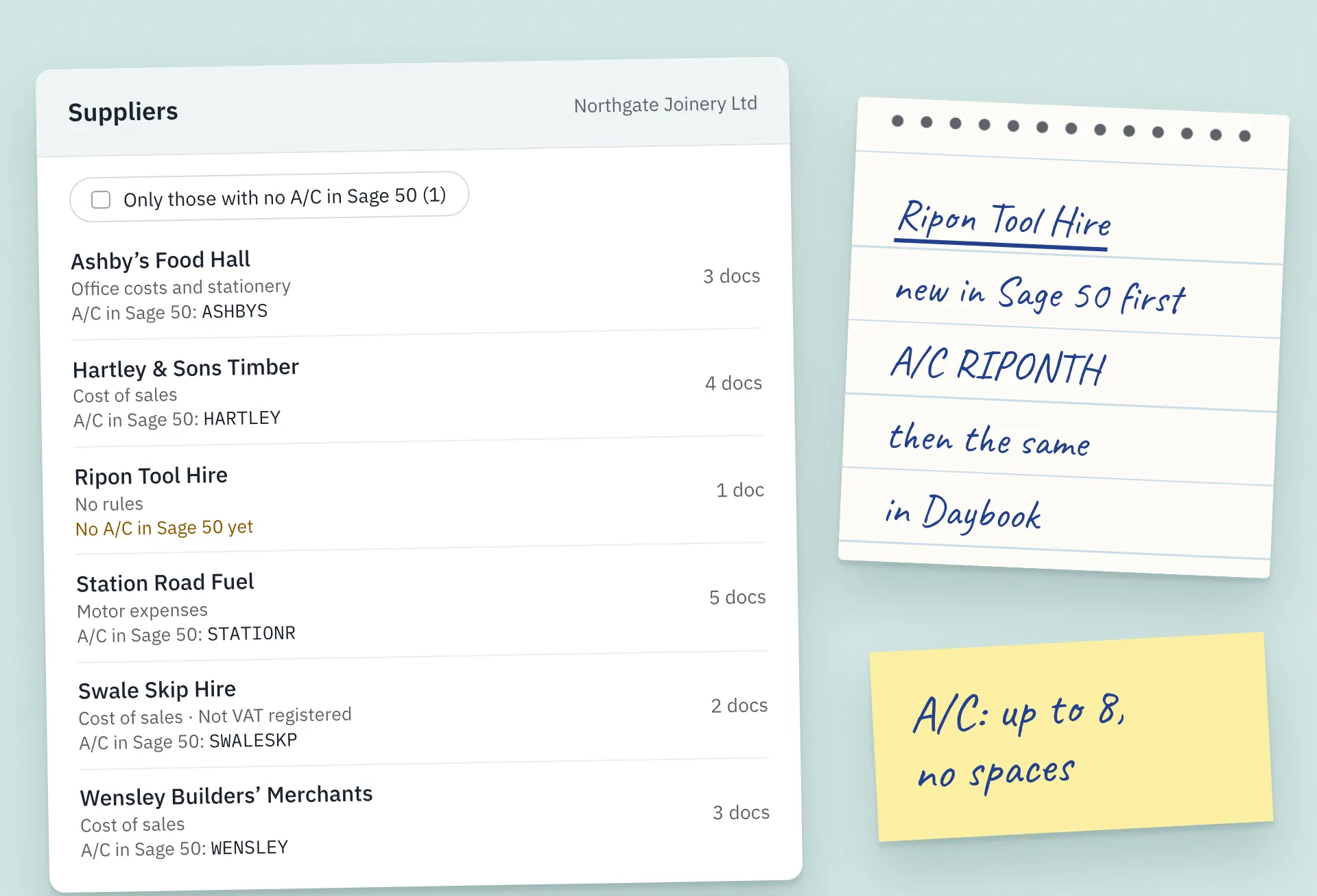
- Suppliers and nominal codes must exist in Sage 50 first: the import finds the supplier by its A/C, up to 8 characters with no spaces.
- Choose the Grouped import to make one invoice of lines with the same A/C, date and reference.
- No negative amounts, no lines worth 0.00, and an exchange rate of 1 for pounds.
- One error and nothing is imported. An import cannot be undone: restore the backup.
Daybook writes this audit trail file from a client’s approved purchases, with each supplier’s A/C, a line for each VAT rate and Sage’s tax codes. How Daybook writes the import file
Contents
- How to import purchase invoices into Sage 50
- The Sage 50 audit trail import template
- Supplier A/Cs and nominal codes
- Sage 50 tax codes for purchases
- An invoice with several lines: the grouped import
- Credit notes and other currencies
- Imported invoices and the VAT return
- Sage 50 import errors
- Attaching the invoices and receipts
- Purchase invoices for Sage 50 from Daybook
- Questions
- Sources
How to import purchase invoices into Sage 50
Sage 50 Accounts imports purchase invoices as audit trail transactions, from a CSV file or an Excel worksheet. Importing is an exclusive area, so everyone else must log out first.1
- Close Excel or any other program that has the file open.
- On the menu bar, go to File and select Import.
- Select Backup to back up the company, then Next.
- In Data type, choose Audit Trail Transactions, or Audit Trail Transactions - Grouped (below), then Next.
- In Data source, choose Comma-separated, or Excel worksheet if a compatible version of Excel is installed.
- Tick First row contains headings if the file has them, then Browse to the file.
- Link each column to a Sage 50 field in the Imported Field column. Compulsory fields show an asterisk, and Save Map keeps the links for next time.
- Check the summary and select Import.1
An import adds transactions and does not overwrite what is there. It cannot be reversed: the way back is to restore the backup taken at the start.1
The Sage 50 audit trail import template
Sage’s template is Audit Trail Transaction FULL template.xls, with tips on each column, compulsory fields in blue and optional ones in yellow. To find it, go to File, Import and select “here” on the Welcome window.4,3
The fields a purchase invoice uses, in the template’s order:2
- Type: PI for a purchase invoice, PC for a purchase credit.
- Account Reference: The supplier’s A/C, up to 8 characters. It must already exist in Sage 50.
- Nominal A/C Ref: The nominal code, up to 8 characters. It must already exist too.
- Department Code: Optional, a number from 0 to 999.
- Date: DD/MM/YYYY. Left blank, Sage uses the program date.
- Reference: The invoice number, up to 30 characters.
- Details: Up to 60 characters.
- Net Amount: Up to 8 digits and 2 decimal places.
- Tax Code: T0 to T99. Left blank, Sage uses T0.
- Tax Amount: Left blank, the line is imported with VAT of 0.00.
- Exchange Rate: 1 for a transaction in pounds.
- Extra Reference: Optional, up to 30 characters.
- User Name: Optional, up to 32 characters.
Sage’s format rules matter as much as the columns:3
- A value longer than its field is cut without a warning: Sage’s own example is an account reference of SAGE0001354 becoming SAGE0001.
- No quotation marks inside a value, and no spaces in numbers (1000.00, not 1 000.00).
- Two commas in a row leave a field blank.
Negative amounts cannot be imported, and an exchange rate of 0 is refused: a transaction in pounds needs 1.8 Remove lines worth 0.00 before importing: from version 28.1, a file with a zero-value transaction is not imported at all.9
Supplier A/Cs and nominal codes
Sage 50 finds the supplier by its A/C, not by its name, and the import does not create suppliers. A line whose A/C is not in Sage 50 gives “Reference to non-existent Purchase Ledger account”: remove the line, or create the supplier and import the file again.2,7 The nominal code of each line must exist in the same way.2
New suppliers can be imported first, as supplier records: the A/C is the one compulsory field, up to 8 characters with no spaces, with the name, VAT number, default nominal code and default tax code beside it. A record whose A/C is already in Sage 50 is updated rather than added.14,5
To see the A/Cs and nominal codes a client already has, export them: Suppliers, Reports, Supplier details, Supplier Record CSV, and Nominal accounts, Reports, Nominal details, Nominal Record CSV.15
Sage 50 tax codes for purchases
Sage 50’s default UK tax codes, and where a purchase goes on the VAT return:
- T1, standard rate, currently 20%: the net in box 7, the VAT in box 4.
- T5, lower rate, currently 5%: the net in box 7, the VAT in box 4.
- T0, zero rated: the net in box 7.
- T2, exempt: the net in box 7.
- T9, transactions not including VAT: not on the return.11
Sage says the codes may differ in a company’s own setup, so check them under Settings, Configuration, Tax Codes.11 The import takes the VAT from the Tax Amount column: left blank, the line comes in with VAT of 0.00.2 A postponed accounting tax code cannot be used in a file import.6 For goods from a supplier that is not VAT registered, Sage’s own guide recommends T0, so the net appears in box 7.12
Reading the rates from a receipt is covered in VAT on supermarket receipts.
An invoice with several lines: the grouped import
With Audit Trail Transactions - Grouped, lines with the same account reference, date and reference appear under one transaction.3 Sage’s community answer adds that lines with different nominal codes, or different tax codes, are still grouped, and that the regular option imports each line as a transaction of its own.17
So an invoice with goods at 20% and 0% can go in as one purchase invoice with two lines. Give each invoice its own reference: a line with no reference is not grouped, and two invoices from one supplier on one day with the same reference would become one.17
Credit notes and other currencies
A supplier’s credit note is a PC, a purchase credit, with its amounts written as positive numbers, as no negative amount can be imported.2,8
Of the purchase transactions, only PI and PC can be imported in another currency: with the amounts in that currency and the exchange rate from the base currency.10,2 Supplier payments (PP) cannot be imported at all: Sage suggests payments on account (PA), allocated by hand afterwards.2
Imported invoices and the VAT return
On an invoice based VAT scheme, such as standard VAT accounting, purchase invoices and credits appear on the VAT return by their date. On a cash based scheme, such as VAT Cash Accounting, the return is worked out from payments, so an invoice counts once its payment is entered.13
So check the file before importing it, above all the dates: a purchase dated in a period whose return is filed would change that period’s figures.
Sage 50 import errors
If the import wizard finds a problem, nothing is imported, and the error names the record.1 With a heading row in the file, the line to look at is the one after the record number given.6 Those met most often with purchase invoices:
- Reference to non-existent Purchase Ledger account: the supplier’s A/C is not in Sage 50.7
- Nominal A/C Ref: Reference to non-existent Nominal Ledger account: the nominal code is not.6
- Date: Bad Value for Date: write the dates as DD/MM/YYYY.2
- Cannot import a zero-value transaction: remove the 0.00 lines.9
- Invalid data for: a letter in a number, a hidden line break from Excel, an exchange rate of 0 or a negative amount.8
Correct the file and import it again. If a wrong file did go in, restore the backup.1
Attaching the invoices and receipts
Purchase invoices for Sage 50 from Daybook
On a client’s Exports tab, choose Sage 50, or set Sage 50 as the client’s accounting software and it is chosen for you. Daybook writes the audit trail file from the approved purchases, with the steps above beside it.
- The 13 columns of Sage’s template in its order, from Type to User Name, with dates written DD/MM/YYYY.
- PI for invoices and receipts, PC for credit notes, every amount positive.
- A line for each VAT rate under the same reference, T1, T5, T0 or T9, with the VAT as read, for the grouped import. A supplier set as not VAT registered goes in at T0, as Sage’s own tax code guide recommends, an exempt one at T2, and one with no VAT number and no VAT rule that charges none at T9. A client that is not VAT registered gets one line at T9.
- Each supplier’s A/C from Daybook’s Suppliers tab, where an A/C longer than 8 characters or with a space is refused rather than cut. Supplier lists import with an A/C column.
- The category’s nominal code. A category with no code stops the export, as one line without a code would stop the whole import.
- Each document’s own reference, shortened by Daybook to 30 characters and kept unique; the line items in Details, up to 60; Exchange Rate 1; the Daybook reference in Extra Reference.
- No quotation marks, and no lines worth 0.00.
Documents the file cannot take are left out and named, with the reason and a list to enter by hand: a supplier with no A/C yet, a purchase in another currency, a VAT rate Daybook could not tell or a total of 0.00. Before the export, “Before importing” lists the nominal codes in the file and the suppliers no earlier export carried, and a client’s first Sage 50 file suggests exporting a single day first.
The originals come as a ZIP, each named with its date, supplier, total and Daybook reference, to attach in Sage 50 or keep with the client’s records. Daybook does not connect to Sage: you import the file yourself.
Doing this for clients every month? Try Daybook on one client’s month: free for 14 days, no card needed.
Questions
Can you import purchase invoices into Sage 50?
Is there a Sage 50 purchase invoice import template?
Can you scan invoices into Sage 50?
The import takes CSV files and Excel worksheets, not PDFs or photos.3 Something has to read each invoice into a file first; Daybook reads clients’ receipts and invoices and writes Sage 50’s audit trail file.
How do I import supplier credit notes into Sage 50?
Why does Sage 50 say “Reference to non-existent Purchase Ledger account”?
A line’s supplier A/C is not in Sage 50. Create the supplier, or remove the line, and import the file again.7
Can you undo an import in Sage 50?
No. Restore the backup Sage asks you to take at the start of the import.1
Who wrote this guide?
We did, the makers of Daybook Capture. Every statement about Sage 50 comes from Sage’s own knowledge base, and one detail of the grouped import from a verified answer on Sage’s community, all listed below with the dates they carry; we read them on 18 October 2026. If something has changed, write to hello@daybookcapture.co.uk and we will correct it. Sage is a trade mark of The Sage Group plc; Daybook Capture is not connected with Sage.
Read next
- VAT codes for purchasesEach program’s purchase VAT codes, box 7, and the code for a supplier not VAT registered.
- Supplier credit notesWhat a valid credit note shows, the VAT on it, and how each program imports one.
- Importing bank statements into Sage 50Bank Feeds imports, date order, Switch transaction types, and BP and BR transactions.
- How Daybook writes the import fileThe same job in Daybook Capture, for every client.
Sources
Every fact on this page was checked against these on 27 October 2026.
- How to import data (opens in a new tab), Sage 50 Accounts knowledge base, last modified 14 October 2026.
- Audit trail transactions data fields you can import (opens in a new tab), Sage 50 Accounts knowledge base, last modified 21 March 2025.
- Import file format rules (opens in a new tab), Sage 50 Accounts knowledge base, last modified 24 September 2025.
- Where to find the import templates (opens in a new tab), Sage 50 Accounts knowledge base, last modified 3 June 2026.
- What type of information can I import? (opens in a new tab), Sage 50 Accounts knowledge base, last modified 19 February 2025.
- Import errors (opens in a new tab), Sage 50 Accounts knowledge base, last modified 26 March 2025.
- Error in record x: Reference to non-existent Sales/Purchase Ledger account (opens in a new tab), Sage 50 Accounts knowledge base, last modified 11 March 2026.
- Error: Invalid data for... when importing (opens in a new tab), Sage 50 Accounts knowledge base, last modified 15 June 2026.
- Error in record x: Cannot import a zero-value transaction (opens in a new tab), Sage 50 Accounts knowledge base, last modified 21 November 2023.
- Error in record x: Exchange Rate Illegal transaction type for foreign currency import (opens in a new tab), Sage 50 Accounts knowledge base, last modified 11 March 2026.
- Default tax codes - UK only (opens in a new tab), Sage 50 Accounts knowledge base, last modified 29 December 2025.
- Which tax code should I use? - from 1 January 2021 (UK only) (opens in a new tab), Sage 50 Accounts knowledge base, last modified 5 November 2021.
- What transaction types appear on my VAT Return (opens in a new tab), Sage 50 Accounts knowledge base, last modified 10 August 2026.
- Supplier record data fields you can import (opens in a new tab), Sage 50 Accounts knowledge base, last modified 13 May 2025.
- How do I export data? (opens in a new tab), Sage 50 Accounts knowledge base, last modified 27 May 2025.
- Add attachments to supplier invoice or credit transactions (opens in a new tab), Sage 50 Accounts knowledge base, last modified 7 May 2025.
- Sage 50 - Data Import - Audit Transactions Grouped? (verified answer) (opens in a new tab), Sage Community Hub, 27 January 2023.