
Importing bills into FreeAgent.
FreeAgent imports a client’s bills from a CSV file, for accountants and bookkeepers who are Practice Partners. This guide shows how to import bills into FreeAgent: the two templates, contacts and categories, VAT on each line, credit notes as bill refunds, and attaching the originals.
Last updated
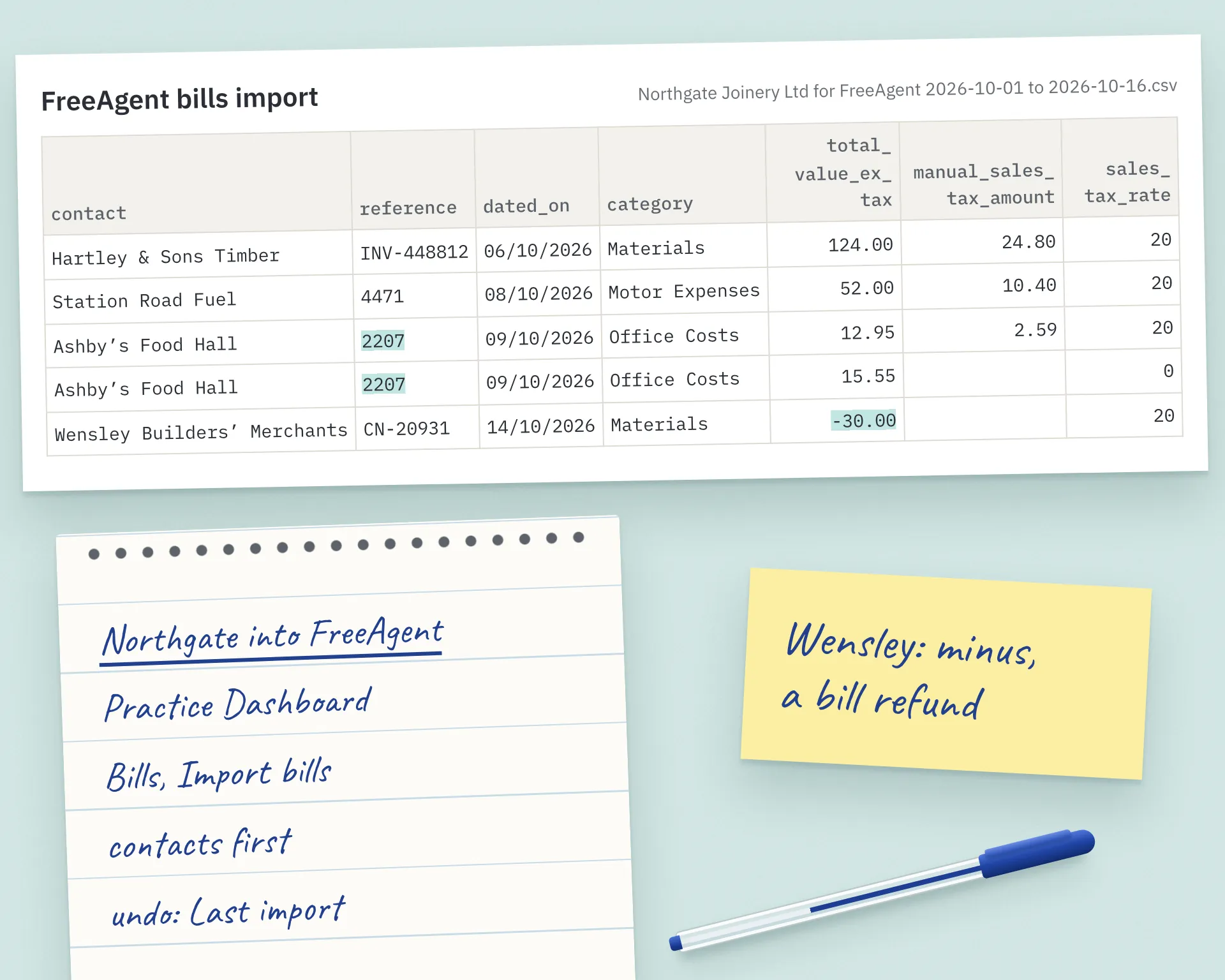
In short
- Practice Partners only: switch to the client, Bills, Import bills, up to 1,000 rows at a time.
- Bills dated on or after the client’s FreeAgent start date; earlier ones are opening balances.
- Contacts must exist first; categories by their exact name or nominal code.
- Dates as DD/MM/YYYY. A bill’s further lines go directly under its first.
- VAT per line as a rate, an amount or a status. Credit notes are bill refunds with a minus sign.
- Originals go to Files, then onto each bill one at a time. Last import undoes it.
Daybook writes this bills file from a client’s approved purchases, on FreeAgent’s complete template, with a line for each VAT rate. How Daybook writes the import file
Contents
- Who can import bills into FreeAgent
- How to import bills into FreeAgent
- The simple and complete bill templates
- Contacts and categories come first
- VAT on imported bills
- Supplier credit notes as bill refunds
- Receipts already paid
- Attaching the originals
- Undoing a bills import
- Uploading bank statements to FreeAgent
- Bills for FreeAgent from Daybook
- Questions
- Sources
Who can import bills into FreeAgent
FreeAgent’s bill importer is only open to accountants and bookkeepers who are Practice Partners.1 A client can import their own out-of-pocket expenses and mileage claims, but not invoices or bills.2
Import only bills dated on or after the client’s FreeAgent start date. Earlier ones go in as opening balances, as opening trade creditors against the contacts.1
How to import bills into FreeAgent
- In the Practice Dashboard, select Switch to beside the client.
- Open the Bills tab at the top of the screen and select Import bills.
- Download the simple or the complete bill template, and fill it in.
- Save it as a .CSV file, choose it, and select Upload.
- Review the bills it added.1
One import takes up to 1,000 rows; more go in several imports. Before the first, check the client’s account has its accounting dates, its VAT registration details and a contact for each supplier.1
The simple and complete bill templates
The simple template has contact, reference, dated_on, category, total_value and quantity, and gives each line the Auto VAT rate of its category. The complete template adds due dates, currencies, VAT-exclusive amounts and VAT you give yourself; extra columns can also be added to the simple one.1 The columns that matter for a purchase:
- contact: Required. Matched to a contact’s organisation, or first and last name, not case sensitive; the first match is used.
- reference: Required. The bill’s number.
- dated_on: Required. DD/MM/YYYY, whatever date format the account uses.
- due_on: DD/MM/YYYY. Left out, 30 days after the bill date.
- currency: The three-letter code. Left out, the account’s own currency.
- comments: Anything else about the bill.
- category: Required. The category’s exact name in FreeAgent, or its nominal code with any leading zeros.
- description: The line item.
- total_value or total_value_ex_tax: The line with VAT, or without it. A bill refund has a minus sign.
- manual_sales_tax_amount: The VAT as an amount, a positive number.
- sales_tax_rate: The VAT rate, such as 20 or 0. Left out, the category’s rate.
- sales_tax_status: Exempt or Out_of_scope, which overrides the rate. Left out, the category decides.
A bill with several lines has its further rows directly under its first, each repeating its contact, reference and date, and FreeAgent works out the total. Write amounts as plain numbers, 1250.00 rather than £1,250.00.1
Contacts and categories come first
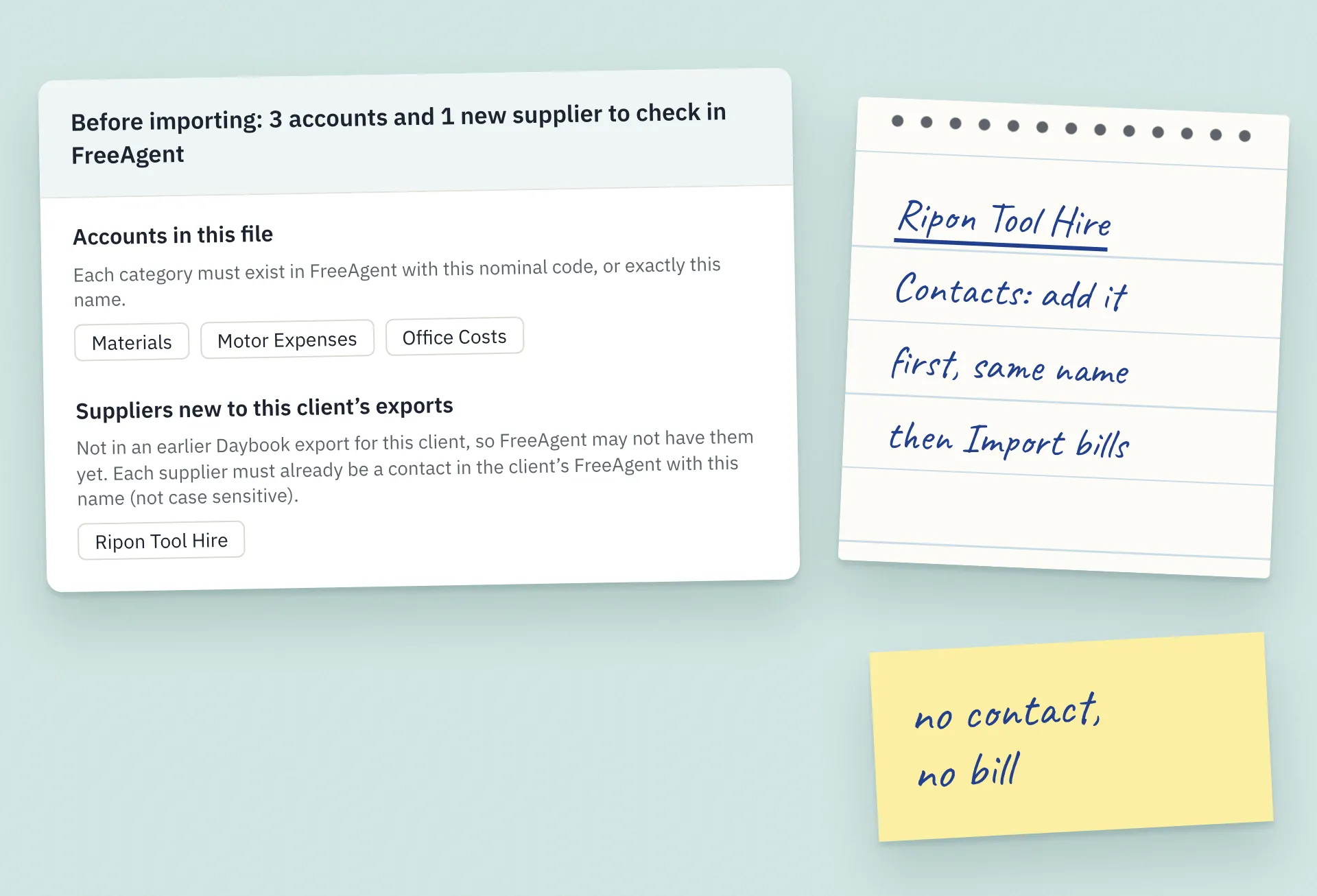
Each bill’s contact must already be in the client’s account.1 Suppliers can be added in one go from a CSV file of contacts, where a company name, or a first and last name, is all that is required.3
Categories must match what they are named in FreeAgent exactly, or go by their nominal code.1 To see them, export the chart of accounts: Accounting, Reports, Trial Balance, Export Report, Chart of Accounts CSV. Codes 001 to 599 are profit and loss accounts.4
VAT on imported bills
Each line takes its VAT one of three ways: a rate in sales_tax_rate, an amount in manual_sales_tax_amount, or a status, Exempt or Out_of_scope, in sales_tax_status. With none, the category decides.1 A receipt with goods at 20% and 0% is one bill with a line at each rate.
The three kinds of no VAT land differently on the return: zero-rated and exempt costs appear in box 7, while out of scope costs do not appear on the VAT return at all.5 Reading the rates from a till receipt is covered in VAT on supermarket receipts.
The importer does not take recurring bills, bills for EC goods or services, bills with reverse charge VAT, bills for stock or hire purchase agreements: enter those by hand.1
Supplier credit notes as bill refunds
Receipts already paid
FreeAgent keeps bills for costs the business will pay from its bank account later, and records a cost paid at once by card or from the bank account in Banking.7 A receipt imported as a bill is marked paid when its bank payment is explained as a Bill Payment.2 Or leave receipts out of the file and explain each card payment instead: a receipt uploaded to Smart Capture is attached to a money-out transaction with a matching date and value.8
Attaching the originals
Undoing a bills import
After an import, edit a bill, or filter the bills by Last import and undo the import. An unpaid bill can be deleted unless the account is locked; one already explained as paid needs that explanation removed first.1
Uploading bank statements to FreeAgent
Bills are only half of it: the bank account has to be in FreeAgent too, to explain each payment against its bill. Without a bank feed, a statement goes in from Banking, Bank Accounts, the account, then Upload Statement. FreeAgent aims to spot transactions it already has and ignore them, and asks for a statement dated from the day after the last transaction in the account.11
OFX and QIF files go in as the bank gives them. A CSV needs level 6 access or above and three columns with no header row: the date as dd/mm/yyyy, the amount with money paid out as a minus, and the description, with no commas in the amounts and no quote marks.10
A statement uploaded by mistake is taken out with More, Undo last upload, which deletes its transactions and any files attached to them; repeat it to go further back.12
For a client with only PDF or paper statements, Daybook reads them, checks every balance, and writes this three-column CSV for FreeAgent (bank statements in Daybook).
Bills for FreeAgent from Daybook
On a client’s Exports tab, choose FreeAgent, or set FreeAgent as the client’s accounting software and it is chosen for you. Daybook writes the bills file from the approved documents, on FreeAgent’s complete template, with the steps above beside it.
- contact, reference, dated_on, due_on, currency, comments, category, description, total_value_ex_tax, manual_sales_tax_amount, sales_tax_rate and sales_tax_status.
- A line for each VAT rate, the net without VAT and the VAT as read, the lines of one document one under the other. A supplier set as not VAT registered goes in at rate 0 (box 7), an exempt one as Exempt, and one with no VAT number and no VAT rule that charges none as Out_of_scope.
- Credit notes as bill refunds, the amounts with a minus sign and the VAT as a rate.
- The supplier’s name as on Daybook’s Suppliers tab, so a supplier printed two ways is one contact.
- The category’s code when it has one, otherwise its name, and the Daybook reference in comments.
- The due date printed on the document, or the document’s date when none is.
A purchase with no category holds the export back. Before the export, Before importing lists the categories in the file and the suppliers no earlier export carried, to add as contacts first, and a client’s first FreeAgent file suggests exporting a single day first.
The originals come as a ZIP, each named with its date, supplier, total and Daybook reference, ready to upload to Files. Daybook does not connect to FreeAgent: you import the file yourself.
Doing this for clients every month? Try Daybook on one client’s month: free for 14 days, no card needed.
Questions
Can you import bills into FreeAgent?
Yes, from a CSV file, if you are an accountant or bookkeeper who is a Practice Partner: switch to the client, then Bills, Import bills.1
Can my client import bills into FreeAgent themselves?
No. Clients can import out-of-pocket expenses and mileage claims, but not invoices or bills.2
What date format does the FreeAgent bills import use?
DD/MM/YYYY, whatever date format the FreeAgent account is set to.1
How do I import a supplier credit note into FreeAgent?
As a bill refund: enter its value with a minus sign in front of it.1
Can you undo a bills import in FreeAgent?
Yes. Filter the bills by Last import and undo the import.1
Who wrote this guide?
We did, the makers of Daybook Capture. Every statement about FreeAgent comes from FreeAgent’s own help articles, listed below with their dates, which we read on 18 October 2026. If something has changed, write to hello@daybookcapture.co.uk and we will correct it. FreeAgent is a trade mark of FreeAgent Central Ltd; Daybook Capture is not connected with FreeAgent.
Read next
- VAT codes for purchasesEach program’s purchase VAT codes, box 7, and the code for a supplier not VAT registered.
- Supplier credit notesWhat a valid credit note shows, the VAT on it, and how each program imports one.
- Duplicate billsWhat Xero, QuickBooks and Sage check, finding duplicates already entered, and removing them.
- How Daybook writes the import fileThe same job in Daybook Capture, for every client.
Sources
Every fact on this page was checked against these on 27 October 2026.
- Import a client’s bills (opens in a new tab), FreeAgent support, updated 5 October 2026.
- Import a client’s accounting data (opens in a new tab), FreeAgent support, updated 28 September 2026.
- Format a CSV file to import contacts (opens in a new tab), FreeAgent support, updated 15 October 2026.
- Export a chart of accounts (opens in a new tab), FreeAgent support, updated 18 October 2026.
- What’s the difference between costs that are zero-rated, exempt and out of scope for VAT? (opens in a new tab), FreeAgent support, updated 16 September 2026.
- Add a bill credit note (opens in a new tab), FreeAgent support, updated 16 October 2026.
- What’s the difference between an expense, a bill and a bank transaction? (opens in a new tab), FreeAgent support, updated 18 October 2026.
- Upload a file (opens in a new tab), FreeAgent support, updated 18 October 2026.
- Attach an image file to a bill (opens in a new tab), FreeAgent support, updated 7 July 2026.
- Format a CSV file to upload a bank statement (opens in a new tab), FreeAgent support, updated 18 October 2026.
- Upload bank transactions from a bank statement (opens in a new tab), FreeAgent support, updated 11 October 2026.
- Undo a bank statement upload (opens in a new tab), FreeAgent support, updated 12 October 2026.