
Importing bills into Xero.
A client’s receipts can go into Xero as draft bills from one CSV file, credit notes included. This guide shows how to import bills into Xero, what the template needs, and how to attach the receipts to the bills afterwards.
Last updated
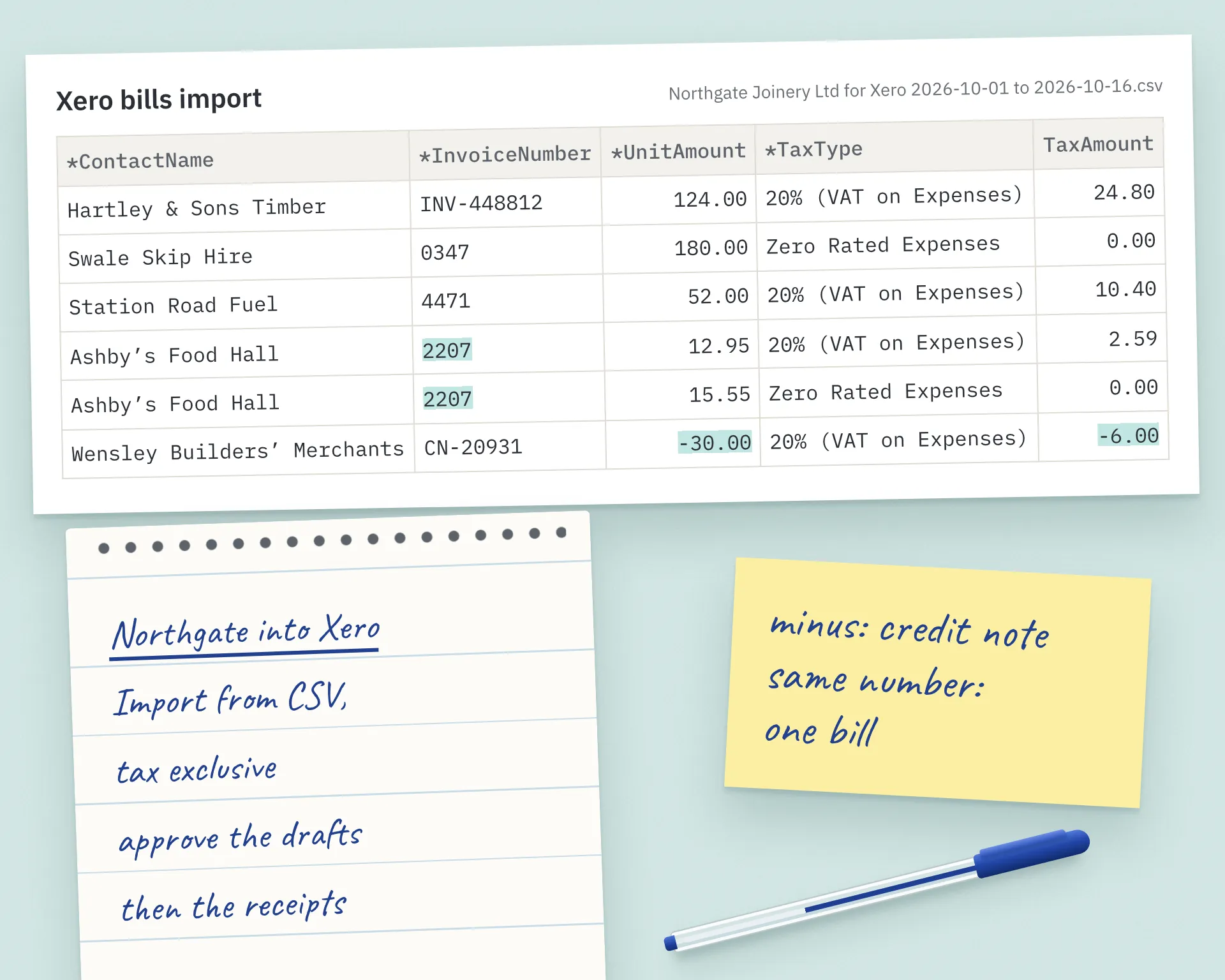
In short
- In Xero, Purchases, Bills, New bill, Import from CSV. Bills and credit notes come in as drafts to approve.
- Keep the template’s headings. Only the contact name must be filled in, and dates are DD/MM/YYYY.
- Rows with the same invoice number become one bill, even for different suppliers, so each bill needs its own reference.
- A credit note is a negative amount. With a TaxAmount column, import as tax exclusive and Xero keeps the VAT in the file.
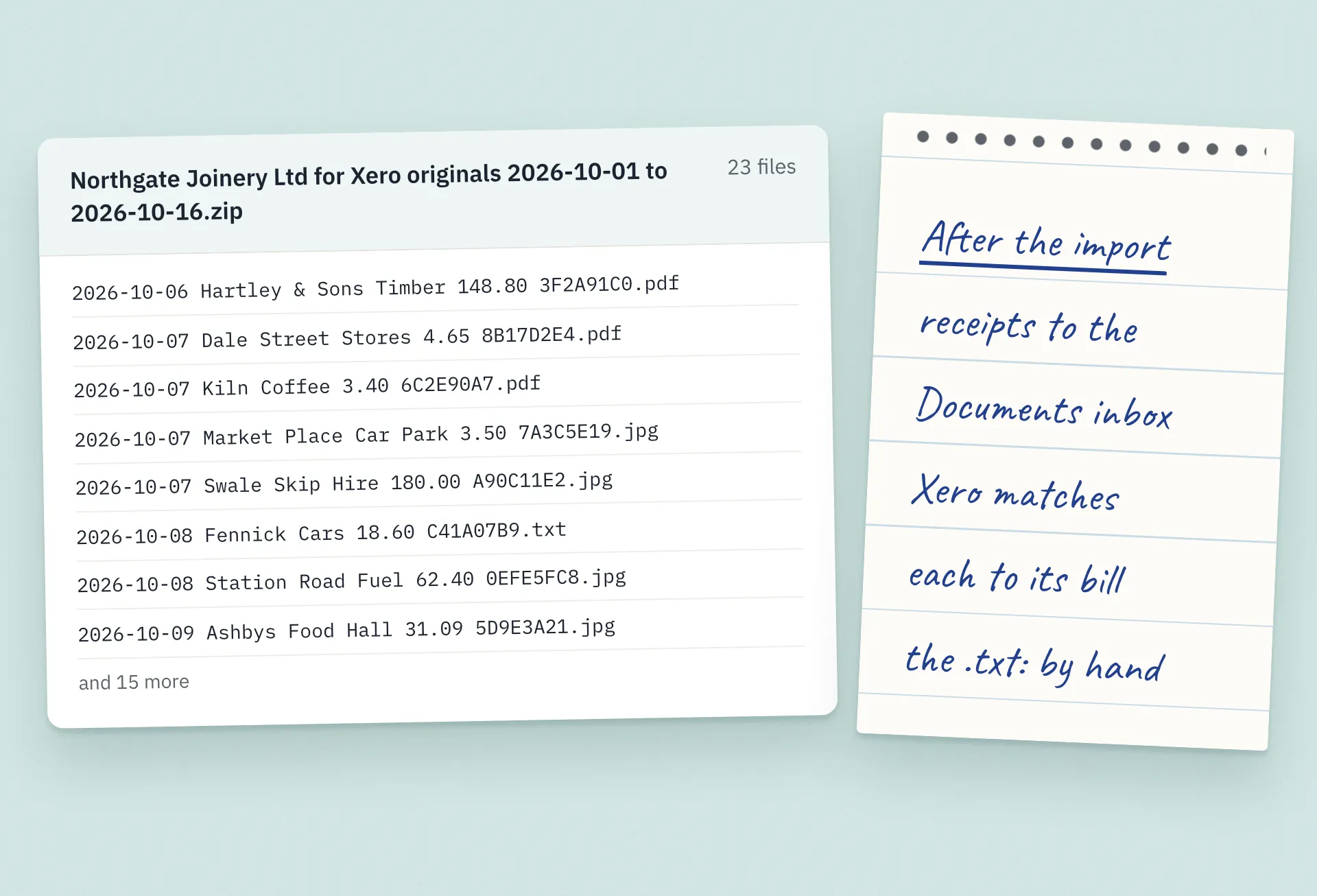
- Send the receipts to Xero’s Documents inbox after the import, so Xero can match each one to its bill.
Daybook writes this bills file from a client’s approved receipts and invoices, on Xero’s template, with a line for each VAT rate. How Daybook writes the import file
Contents
How to import bills into Xero
Xero imports bills and credit notes from one CSV file. They arrive as drafts, which you approve after the import.1
- In the Purchases menu, select Bills.
- Click New bill, then select Import from CSV.
- Drag and drop the CSV file, or click Select File.
- Choose whether the amounts in the UnitAmount column are tax inclusive or tax exclusive, then click Confirm.
- Read Xero’s import message. If it lists errors, fix them in the file and import it again; otherwise click Complete import.1
Then open the draft bills, add anything missing and approve them. A bill or credit note that does not import can be entered by hand afterwards.1
The Xero bills import template
On the Import from CSV screen, Download the Xero import template gives the headings Xero expects. Keep the headings as they are. Only the contact name must be filled in; every other column is optional.1
- ContactName
- The supplier’s name exactly as it appears in Xero. A supplier not yet in Xero is added as a new contact.1 In our test, names were matched whatever their capital letters: HARTLEY & SONS in the file found Hartley & Sons in Xero.
- InvoiceNumber
- A reference for each bill or credit note. Rows with the same reference are combined into one bill, even when the contact is different, so repeat a reference only for the lines of one bill.1
- InvoiceDate and DueDate
- In the format DD/MM/YYYY.1
- UnitAmount
- The price, all tax inclusive or all tax exclusive, never a mix of both. A credit note’s price is negative.1
- AccountCode
- The account’s code as it displays in Xero.1
- TaxType
- The purchases tax rate’s display name, in full. Xero’s standard UK purchase rates are 20% (VAT on Expenses), 5% (VAT on Expenses), Zero Rated Expenses, Exempt Expenses and No VAT.1,2
- TaxAmount
- Not in the template: add it to import the VAT printed on the bill instead of the VAT Xero would work out, and import the file as tax exclusive.1
Xero recommends splitting a file of more than 500 items. A foreign currency has to be added in Xero before bills in it can be imported.1
Importing credit notes into Xero
Credit notes go in the same file as bills: enter the price as a negative amount, and they arrive as drafts like the bills.1
In our test, a row with a negative unit amount came in as a draft credit note for its supplier, not as a bill.
Two VAT rates on one bill
A supermarket receipt can hold zero rated food and standard rated goods. To import it as one bill, give it one line for each VAT rate, with the same reference: Xero combines rows with the same reference into one bill.1
With a TaxAmount on each line and the file imported as tax exclusive, each line carries the VAT printed on the receipt.1 In our test, a receipt with a line at 20% (VAT on Expenses) and one at Zero Rated Expenses came in as one draft bill with two lines, its VAT the same as on the receipt to the penny.
Reading the rates from the receipt is covered in VAT on supermarket receipts.
Attaching the receipts after the import
The import brings in the figures, not the receipts. Xero attaches each receipt to its bill once both are in Xero. Send the receipts to the organisation’s Documents inbox:
- Upload them
- In the Accounting menu, select Documents, then Upload to Documents Inbox. Each file must be under 25MB.3
- Or email them
- Email to Documents Inbox shows the organisation’s own address to send files to. Xero asks that it is shared only with people you trust, and never published.3
Xero reads each file and uses its date and amount to look for a transaction already in Xero. When it finds one, the file shows Match, and Match attaches it to the bill. When it finds none, the file shows Review, and Create transaction would make a new one from it.4
So import the bills first, then send the receipts. In our test, a receipt sent after its bill was offered as a match within a minute. One sent before the import was offered as new spending, and was still not matched two minutes after its bill came in: creating a transaction from it would have booked the purchase twice.
With Automate matching transactions on, Xero attaches a file by itself when exactly one transaction matches it; otherwise the file stays in the inbox. It is off by default, and a standard or administrator user turns it on in Documents with the settings icon. It only works on files uploaded after that,5 so Xero’s tip is to turn it on before uploading files for transactions already in Xero.3
Xero reads PDF, JPG and PNG files of up to 10 pages.4 A photo in another format, a Word file or the text of an email is attached by hand: open the bill, click Attach files, then Add from document library or Upload files.6
Do not send the receipts to the bills email address (Copy your forwarding email address, under New bill). Xero makes a new draft bill from each attachment sent there,7 so every purchase would be in Xero twice.
Importing the same bills twice
In our test, Xero imported a bill whose supplier and reference were already in Xero. It warned on the bill itself, and later above the list of bills, but the import went through.
Keep a record of which purchases have gone into Xero, and look over the draft bills before approving them.
Bills for Xero from Daybook
On a client’s Exports tab, choose Xero. Daybook writes the bills import file from the approved purchases, with Xero’s template headings, all 26 in the same order (we compared them with the template on 17 October 2026), and lists the steps above.
- A line for each VAT rate, with the VAT printed at that rate in TaxAmount, so the file is imported as tax exclusive.
- Credit notes as negative amounts, in the same file.
- The account code of each purchase’s category. Import the client’s chart of accounts into its categories, or add the codes by hand; the Exports tab says how many purchases have none.
- Xero’s UK rate names: Zero Rated Expenses for a supplier set as not VAT registered, Exempt Expenses for one set as exempt (both in box 7), and No VAT, off the VAT return, for a supplier with no VAT number and no VAT rule that charges none.
- The printed number as the reference. A purchase with none gets Daybook’s own reference, and when two purchases in the file share a number, Daybook’s reference is added to both, so no two bills are combined.
- The due date as printed, or the bill’s date when none is printed.
Tick Also download the original files for a ZIP of the receipts beside the file, each named with its date, supplier and total, ready for the Documents inbox once the bills are in.
Exported documents are locked, so a purchase goes to Xero once, unless you export it again on purpose and the export history marks a re-export. Daybook does not connect to Xero: you import the file yourself.
Doing this for clients every month? Try Daybook on one client’s month: free for 14 days, no card needed.
Questions
How do I import bills into Xero?
In Purchases, Bills, click New bill, then Import from CSV. Choose the file, say whether its amounts are tax inclusive or exclusive, and confirm. The bills arrive as drafts to approve.1
Can you import credit notes into Xero?
Yes, in the same file as bills, with the price as a negative amount. They arrive as draft credit notes.1
Where is the Xero bills import template?
On the Import from CSV screen: Download the Xero import template. Keep its headings as they are.1
Why did two rows become one bill in Xero?
They had the same InvoiceNumber. Xero combines rows with the same reference into one bill, even for different contacts.1
How many bills can I import into Xero at once?
Xero recommends splitting a file of more than 500 items.1
How do I attach receipts to bills imported into Xero?
Who wrote this guide?
We did, the makers of Daybook Capture. Every statement about Xero comes from Xero’s own help pages, listed below with the day we read them, or from our own import into Xero’s demo company on 16 October 2026, said as such. If something has changed, write to hello@daybookcapture.co.uk and we will correct it. Xero is a trade mark of Xero Limited; Daybook Capture is not connected with Xero.
Read next
- VAT codes for purchasesEach program’s purchase VAT codes, box 7, and the code for a supplier not VAT registered.
- Supplier credit notesWhat a valid credit note shows, the VAT on it, and how each program imports one.
- Duplicate billsWhat Xero, QuickBooks and Sage check, finding duplicates already entered, and removing them.
- How Daybook writes the import fileThe same job in Daybook Capture, for every client.
Sources
Every fact on this page was checked against these on 27 October 2026.
- Import bills and credit notes (UK) (opens in a new tab), Xero Central.
- Accounting API types and codes: tax rates, United Kingdom (opens in a new tab), Xero Developer.
- Upload a file to the document library (opens in a new tab), Xero Central.
- Match or create a transaction with Smart Document Capture (opens in a new tab), Xero Central.
- Use auto-match with Smart Document Capture (opens in a new tab), Xero Central.
- Attach a file to a transaction (opens in a new tab), Xero Central.
- Email bills to your Xero organisation (opens in a new tab), Xero Central.