
Importing purchase invoices into QuickFile.
QuickFile imports purchase invoices from a CSV file with its Data Import Wizard. This guide shows how to import purchase invoices into QuickFile: the column names, suppliers, VAT rates and nominal codes, the credit notes it does not take, and the Receipt Hub for the originals.
Last updated
In short
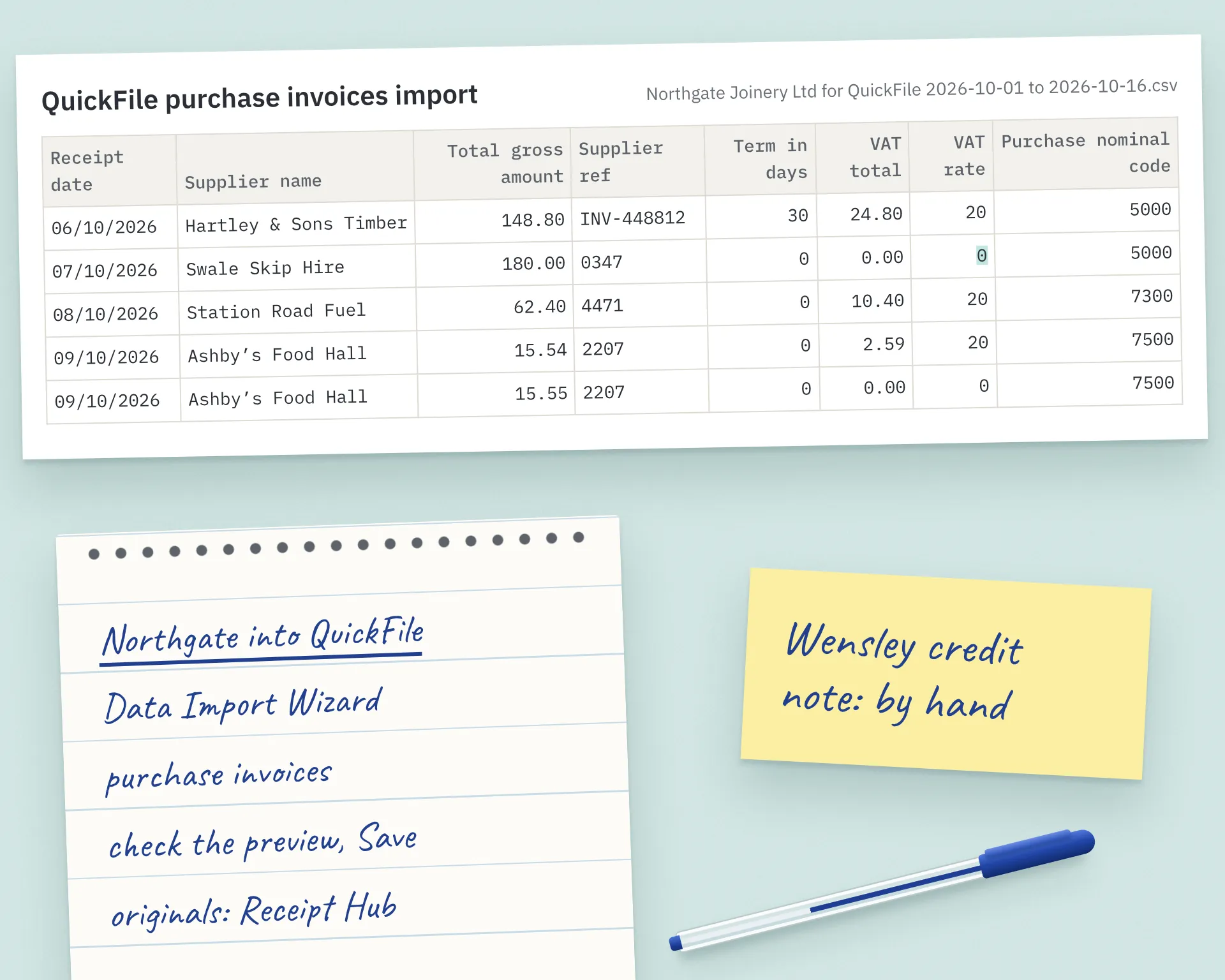
- Account Settings, Data Import Wizard, purchase invoices, from CSV, up to 250 at a time.
- Required: Receipt date, Supplier name, Description, Total gross amount. Headings with QuickFile’s own names match by themselves.
- VAT rate as a number: 0 for no VAT, or QuickFile may assume 20%.
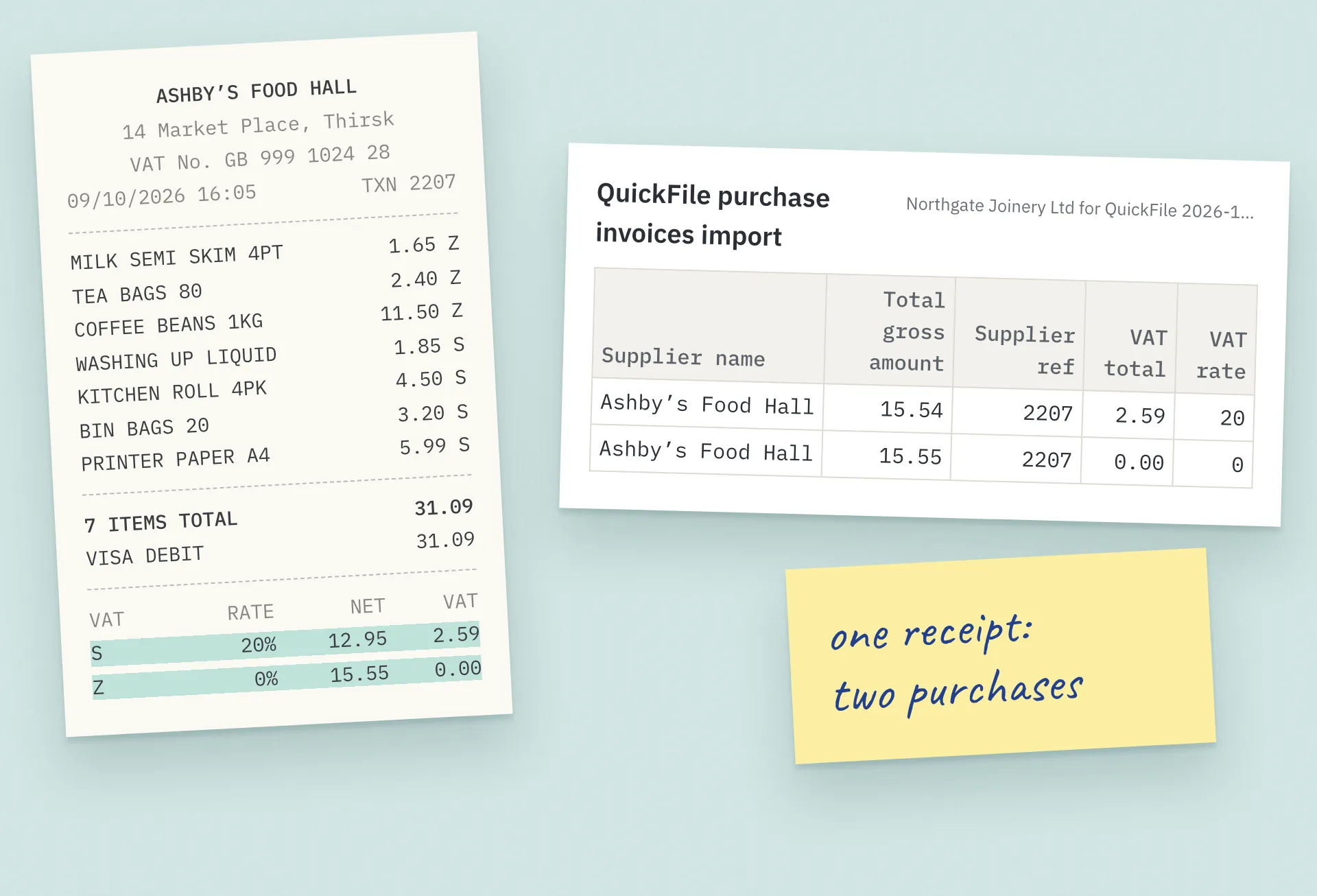
- One line a purchase: a receipt with two VAT rates goes in as two purchases.
- Credit notes cannot be imported, and purchases arrive unpaid.
- Originals go to the Receipt Hub, by email to receipts@quickfile.co.uk.
Daybook writes this purchases file from a client’s approved receipts and invoices, with QuickFile’s own column names, so the columns match by themselves. How Daybook writes the import file
Contents
- How to import purchase invoices into QuickFile
- The QuickFile purchase invoice import columns
- VAT rates and VAT totals
- Suppliers and nominal codes
- Credit notes
- Imported purchases arrive unpaid
- The originals: the Receipt Hub
- When an import goes wrong
- Purchase invoices for QuickFile from Daybook
- Questions
- Sources
How to import purchase invoices into QuickFile
QuickFile imports purchase invoices from a CSV file with its Data Import Wizard, up to 250 at a time.1
- From the dashboard, open Account Settings, then the Data Import Wizard.
- Choose to import purchase invoices.
- Browse for the CSV file and upload it.
- Check the preview, and use the drop-down menus above it to map any column QuickFile did not match.
- Click Save. A larger import can take a few minutes.1
Save a spreadsheet as CSV first, not .xls or .xlsx,9 and write dates the UK way: QuickFile does not take the US format.8
The QuickFile purchase invoice import columns
QuickFile has no template to download: its column list is the template. The columns, in its order:1
- Receipt date: Required.
- Supplier name: Required. It must match a supplier exactly, or QuickFile creates a new one.
- Description: Required.
- Total gross amount: Required.
- Currency: GBP when left out.
- Exchange rate: For another currency, worked out from daily spot rates when left out.
- Supplier Ref.: The supplier’s invoice number.
- Term in days: Days allowed to pay; QuickFile’s default when left out.
- VAT total: The VAT amount.
- VAT rate: A number: 20, not 20% or 0.2.
- Purchase nominal code: 5000, general purchases, when left out.
- Paid date: Left out, the purchase is unpaid.
- Paid account nominal code: The current account when a paid date is given.
With a header row of the column names exactly as listed, QuickFile matches the columns by itself.1 In our test nine matched that way; the supplier reference matched only once its heading was written Supplier ref, without the full stop.
VAT rates and VAT totals
Write the VAT rate as a number, 20 for 20%. When the VAT columns are left out, QuickFile assumes the standard rate for a VAT registered account.1 A rate that is not a number, such as “No VAT”, does not import as 0: put 0 for a purchase with no VAT, or the purchase can come in at 20%.6
Each row is one purchase with one line: grouping lines under one invoice number works for sales invoices, and QuickFile’s support team has said it is not yet there for purchases.1,4 So a receipt with goods at 20% and 0% goes in as two purchases, one at each rate.
In our test, each purchase kept the VAT given in the file, and a row with another country’s rate (a hotel in Spain at 10%) was refused with “Invalid VAT rate was supplied: 10” while the other rows went in. For the VAT to import at all, the business must be set as VAT registered in QuickFile. Reading the rates from a receipt is covered in VAT on supermarket receipts.
Suppliers and nominal codes
QuickFile matches each supplier by its exact name and creates one when it finds no match, so “Tesco Stores Ltd” and “TESCO STORES 2187” become two suppliers. The purchase nominal code is the account, 5000 when left out.1 In our test, codes from QuickFile’s own chart went in as given: 7300 Fuel and Oil, 7500 Printing, 7800 Repairs and Renewals.
Credit notes
Supplier credits cannot be imported, and a minus figure gives “Error - you can not input a minus value.” Take credit notes out of the file and enter them by hand: open the invoice and choose More Options, Credit Note.5
Imported purchases arrive unpaid
Without a paid date, an imported purchase is unpaid; with one, it is paid from the current account unless a paid account nominal code is given.1 In our test, receipts imported with no paid date showed as overdue at once, and invoices with no term were given QuickFile’s default of 30 days.
The originals: the Receipt Hub
The import file carries no attachments. The originals go to QuickFile’s Receipt Hub, by upload, the app, Dropbox or email: forward them to receipts@quickfile.co.uk from one of up to 10 addresses set under Account Settings, Routine Emails, Email my Receipts. They appear within about 5 minutes.2,3
In the Receipt Hub, a new receipt is untagged. Enter its amount, and QuickFile looks for a matching purchase: click the match and the receipt is tagged to that purchase. PDFs, PNG, GIF, JPG and TIF images, Word, Excel, HTML and plain text files are taken, within a daily limit of 262 MB.2,3
When an import goes wrong
QuickFile’s support team has said there is no undo for an import. For imported sales invoices it suggested deleting them in bulk, 50 at a time with Delete Selected, which moves them to the Deleted area; it does not say purchases have the same button. For purchases imported with the wrong VAT, it suggested deleting and importing again with the correct content, or correcting each one.7,6 Deleted records are kept, which may stop the same rows importing again. So try a few rows first.
Purchase invoices for QuickFile from Daybook
On a client’s Exports tab, choose QuickFile, or set QuickFile as the client’s accounting software and it is chosen for you. Daybook writes the purchases file from the approved documents, with the steps above beside it, as tried in a QuickFile account.
- QuickFile’s own column names, so the columns match by themselves: Receipt date, Supplier name, Description, Total gross amount, Currency, Supplier ref, Term in days, VAT total, VAT rate and Purchase nominal code.
- A purchase for each VAT rate, with the VAT as read, and 0 for a supplier outside the VAT system.
- The supplier’s name as on Daybook’s Suppliers tab, so a supplier printed two ways goes to one QuickFile supplier.
- The category’s code as the purchase nominal code.
- Term in days from the due date printed, 0 for a receipt, and none for an invoice without one.
- Other currencies kept, for QuickFile to convert.
Credit notes are left out and named, as is a document with a VAT rate other than 20%, 5% or 0%, with a list to enter by hand. Before the export, “Before importing” lists the nominal codes in the file and the suppliers no earlier export carried, and a client’s first QuickFile file suggests exporting a single day first. Over 250 documents, it suggests a shorter date range.
The originals come as a ZIP, each named with its date, supplier, total and Daybook reference, ready to email to the Receipt Hub. Daybook does not connect to QuickFile: you import the file yourself.
Doing this for clients every month? Try Daybook on one client’s month: free for 14 days, no card needed.
Questions
Can you import purchase invoices into QuickFile?
Yes, from a CSV file: Account Settings, Data Import Wizard, up to 250 at a time.1
What columns does the QuickFile purchase import need?
At least Receipt date, Supplier name, Description and Total gross amount. The VAT rate, VAT total, nominal code and the rest are optional.1
Can you import supplier credit notes into QuickFile?
No. Remove them from the file and enter them by hand, from the invoice with More Options, Credit Note.5
How do I attach receipts to imported purchases in QuickFile?
Can you undo an import in QuickFile?
Who wrote this guide?
We did, the makers of Daybook Capture. Every statement about QuickFile comes from QuickFile’s own knowledge base or its support team’s answers on its community, listed below; the knowledge base pages carry no dates, and we read them on 18 October 2026. What only our own import into a QuickFile account on 17 October 2026 showed is said as such. If something has changed, write to hello@daybookcapture.co.uk and we will correct it. QuickFile is a trade mark of QuickFile Ltd; Daybook Capture is not connected with QuickFile.
Read next
- VAT codes for purchasesEach program’s purchase VAT codes, box 7, and the code for a supplier not VAT registered.
- Supplier credit notesWhat a valid credit note shows, the VAT on it, and how each program imports one.
- Duplicate billsWhat Xero, QuickBooks and Sage check, finding duplicates already entered, and removing them.
- How Daybook writes the import fileThe same job in Daybook Capture, for every client.
Sources
Every fact on this page was checked against these on 27 October 2026.
- Importing sales and purchase invoices (opens in a new tab), QuickFile knowledge base.
- The Receipt Hub (opens in a new tab), QuickFile knowledge base.
- Email us your receipts (opens in a new tab), QuickFile knowledge base.
- Importing Purchase Invoices (support team answer) (opens in a new tab), QuickFile community, 26 December 2025.
- Can’t bulk import purchase invoices that are refunds (support team answer) (opens in a new tab), QuickFile community, 7 February 2023.
- Imported purchase invoices with wrong VAT (support team answer) (opens in a new tab), QuickFile community, 6 November 2019.
- Delete Invoice Import (support team answer) (opens in a new tab), QuickFile community, 1 August 2019.
- Importing US date format? (support team answer) (opens in a new tab), QuickFile community, 29 January 2019.
- Bulk Purchase (support team answer) (opens in a new tab), QuickFile community, 5 December 2015.