
Importing purchases into VT Transaction+.
VT Transaction+ imports purchase invoices through its Universal Input Sheet, one row a transaction. This guide shows how to import purchases into VT Transaction+: the columns, PIN and PCR, VAT on one row, analysis accounts, and what to do when a receipt was paid on the day.
Last updated
In short
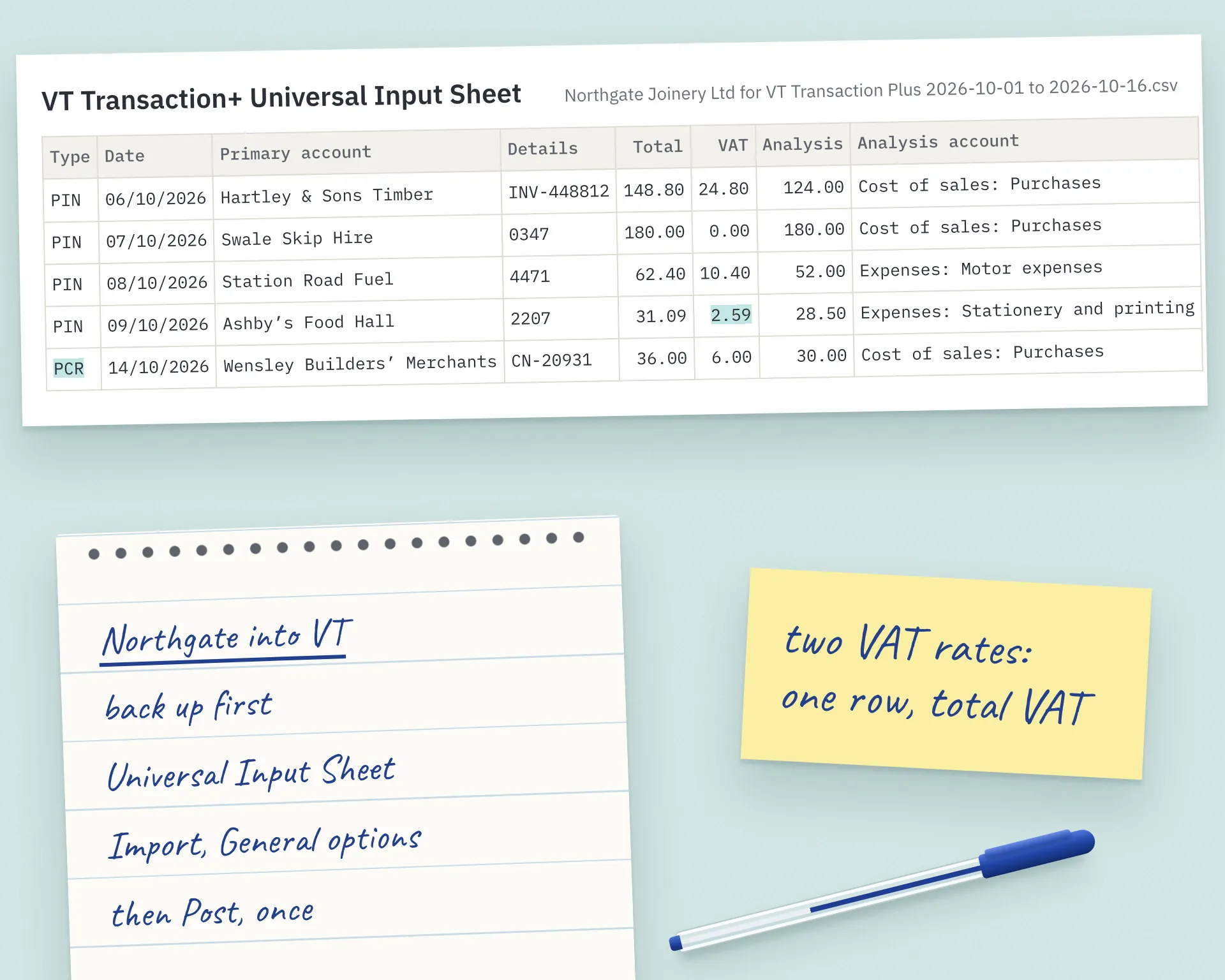
- Transactions, Universal Input Sheet, Import from: CSV File / Text File, General options, then match each column and Post.
- One transaction a row: Type, Ref no, Date, Primary account, Details, Total, VAT, Analysis, Analysis account, Entry details, Transaction notes.
- PIN for an invoice, PCR for a credit note, every amount positive. The analysis account has its ledger first: Cost of sales: Purchases.
- No VAT code: enter the VAT amount, the total VAT for a purchase at two rates.
- Foreign currency and split transactions cannot be imported.
- No undo once posted: back up first, and post each file once.
Daybook writes this Universal Input Sheet file from a client’s approved purchases, one row for each document, with the category as the analysis account. How Daybook writes the import file
Contents
- How to import purchases into VT Transaction+
- The Universal Input Sheet columns
- VAT on the Universal Input Sheet
- Supplier accounts and analysis accounts
- Credit notes, and receipts paid on the day
- Purchases in another currency
- Posting once, and correcting mistakes
- Where the invoices and receipts go
- Purchases for VT Transaction+ from Daybook
- Questions
- Sources
How to import purchases into VT Transaction+
VT Transaction+ imports transactions through its Universal Input Sheet, from a CSV file, a text file or data copied from a spreadsheet. VT Cash Book cannot import.1,18
- Select Transactions, then Universal Input Sheet.
- Select Import from: CSV File / Text File, and choose the file.
- Keep General options, the choice for anything but a bank statement.
- Tick First row of data contains column headers, if the file has them.
- Above each column, choose the Universal Input Sheet column it goes to, or Not imported, then OK.
- If VT does not know a supplier or an analysis account, select that column, right-click and choose Convert to match each to a VT account. Auto Assign matches those with similar names.
- Check the sheet, edit any cell as in a spreadsheet, then click Post.2
Posting clears the rows from the sheet. Rows not yet posted are kept in the company file until the sheet is opened again, and Post Selected Rows posts only some of them.1
The Universal Input Sheet columns
The sheet’s columns, in its order, and what goes in each for a purchase invoice:5,4
- Type: PIN for a purchase invoice, PCR for a purchase credit note.
- Ref no: Left blank, VT gives the transaction its own number.
- Date: The invoice date, which sets the period the transaction is posted to.
- Primary account: The supplier’s account, its name only, with no ledger in front (Widgets Ltd, not Suppliers: Widgets Ltd).
- Details: Optional: the supplier’s invoice number or a description.
- Total: The gross amount.
- VAT: The VAT, or 0.00 when there is none.
- Analysis: The net amount: the total less the VAT.
- Analysis account: The account the cost goes to, with its ledger in front: Cost of sales: Purchases, Expenses: Motor expenses.
- Entry details: Optional: a description for each line.
- Transaction notes: Optional: any other note.
Amounts are written “normally plus” whatever the type: VT posts the debit or credit itself.1,4
For the import, each transaction must be on a single row. A transaction split over several analysis accounts cannot be imported: type or paste it on the sheet instead, with the extra analysis lines on the rows below.2,4
VAT on the Universal Input Sheet
The sheet has no VAT code or rate: VT takes the VAT amount. For a purchase with goods at different rates, enter the total VAT from the invoice, as there is no requirement to enter the VAT at each rate separately.9,8
A zero rated or exempt purchase, one outside the scope of VAT, or one from a supplier that is not VAT registered, has VAT of 0.00. Whether a transaction is outside the scope is set by its analysis account, not on the transaction.9
For a client that is not VAT registered, the VAT is 0.00 and the analysis is the gross amount.5 On the flat rate scheme, purchases go in gross with no input VAT, apart from single capital purchases of £2,000 or more and the reverse charge cases VT lists.10
Reading the VAT from a receipt with two rates is covered in VAT on supermarket receipts.
Supplier accounts and analysis accounts
The Primary account of a PIN is a supplier account, written as its name alone. The Analysis account carries its ledger first, then a colon and a space: Cost of sales: Purchases. With departments, the department follows: Cost of sales: Purchases: Production.4
Accounts VT does not recognise are matched on the sheet with Convert before posting, and new suppliers can be set up there.2,5 So name each category as its VT account, ledger included, and use the supplier’s name as it is in VT, so there is less to match.
Credit notes, and receipts paid on the day
A supplier’s credit note for an invoice already entered is a PCR, its amounts positive like a PIN’s.7,4
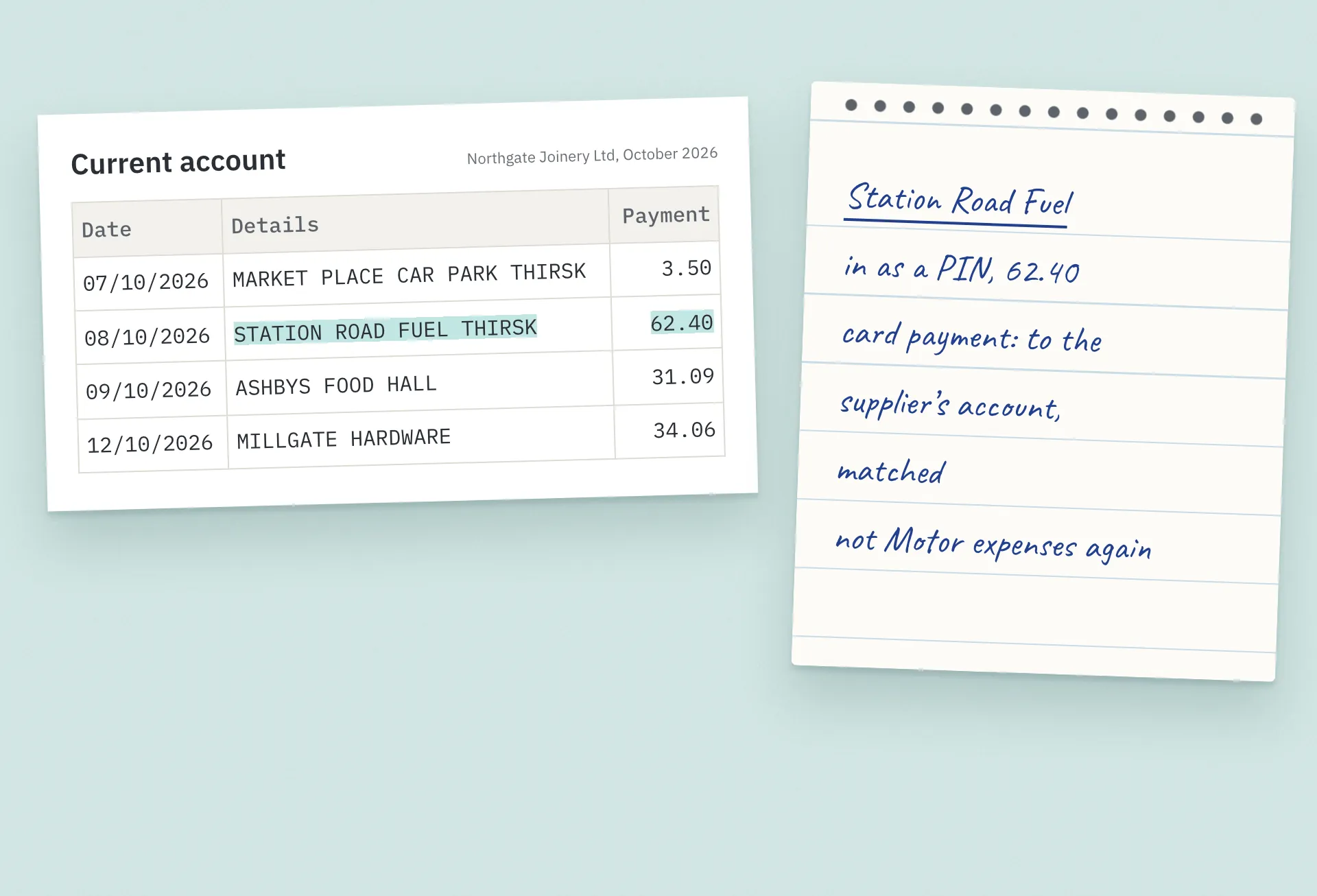
VT’s help keeps the PIN for purchases on credit. A purchase paid for at the time, by card or cash, is recorded there as a payment (PAY) analysed to the expense account, with no PIN.6 When a receipt does go in as a PIN, its payment belongs on the supplier’s account, matched to the invoice, so the cost is not counted twice. VT’s own bank import example analyses a payment to a supplier’s account.13,14
On VAT cash accounting, a PIN’s VAT waits in a deferred VAT account until its payment is entered and matched to it.11
Purchases in another currency
Foreign currency transactions cannot be entered with the Universal Input Sheet: enter them one by one in the transaction dialogs.15
Posting once, and correcting mistakes
A posted transaction can be edited, or deleted with a right-click and Delete, unless the change would affect a saved VAT return or bank reconciliation. For an audit trail, a PIN can be reversed with Raise Credit Note and entered again.16
A whole import is undone by restoring the data file: File, Restore, from a backup made with File, Backup to Removable Drive or Backup to Any Drive/Folder.17 So back up before posting, and post each file once.
Where the invoices and receipts go
VT keeps transaction notes on each transaction, plain text of any length.12 Its help describes no way to attach a file to a purchase, so the originals stay with the client’s records, and a note on each transaction can say where to find its original.
Purchases for VT Transaction+ from Daybook
On a client’s Exports tab, choose VT Transaction+, or set VT Transaction+ as the client’s accounting software and it is chosen for you. Daybook writes the import file from the approved purchases, with the steps above beside it.
- The sheet’s 11 columns in its order, each headed with its Universal Input Sheet name to choose above it.
- One row for each document: PIN, or PCR for a credit note, all amounts positive.
- Total the gross, VAT the VAT as read, the total VAT on one row for a receipt with two rates, and Analysis the net. A client that is not VAT registered gets VAT 0.00 and the gross as the analysis.
- The supplier’s name as on Daybook’s Suppliers tab, so the names it was printed under go to one account, and the printed number in Details.
- The category’s name as the analysis account. The Exports tab points out categories not named as VT accounts (Ledger: Account), to rename or match with Convert.
- The line items in Entry details, and the Daybook reference in Transaction notes.
Every document goes in as a PIN or PCR, receipts paid on the day included, so post their payments to the supplier’s account. Documents in another currency are left out and named, with a list to enter by hand. Before the export, “Before importing” lists the analysis accounts and the suppliers no earlier export carried, and a client’s first VT file suggests exporting a single day first.
The originals come as a ZIP, each named with its date, supplier, total and Daybook reference, the same reference as in its Transaction notes. Daybook does not connect to VT: you import the file yourself.
Doing this for clients every month? Try Daybook on one client’s month: free for 14 days, no card needed.
Questions
What is the Universal Input Sheet in VT Transaction+?
A sheet for entering or importing many transactions at once, from a CSV or text file or pasted from a spreadsheet. It starts with 1,000 rows and has no limit on rows.1
Can VT Transaction+ import purchase invoices from Excel?
How do I enter VAT at two rates on one purchase in VT?
Enter the total VAT from the invoice. VT keeps the VAT amount, and HMRC does not require the VAT at each rate to be entered separately.8
Can VT Cash Book import transactions?
No. Importing with the Universal Input Sheet is in VT Transaction+ only.18
Does VT Transaction+ run on a Mac?
VT is for Windows only. Some users run it on a Mac with Boot Camp or Parallels, which VT Software does not guarantee or support.19
Who wrote this guide?
We did, the makers of Daybook Capture. Every statement about VT Transaction+ comes from VT Software’s own help, listed below; its pages carry no dates, and we read them on 18 October 2026. If something has changed, write to hello@daybookcapture.co.uk and we will correct it. VT Transaction+ is a product of VT Software Limited; Daybook Capture is not connected with VT Software.
Read next
- VAT codes for purchasesEach program’s purchase VAT codes, box 7, and the code for a supplier not VAT registered.
- Supplier credit notesWhat a valid credit note shows, the VAT on it, and how each program imports one.
- Duplicate billsWhat Xero, QuickBooks and Sage check, finding duplicates already entered, and removing them.
- How Daybook writes the import fileThe same job in Daybook Capture, for every client.
Sources
Every fact on this page was checked against these on 18 October 2026.
- Universal Input Sheet: Instructions (opens in a new tab), VT Transaction+ help.
- Universal Input Sheet, Method 1: Importing (opens in a new tab), VT Transaction+ help.
- Universal Input Sheet, Method 2: Copying and pasting directly (opens in a new tab), VT Transaction+ help.
- Data format of Universal Input Sheet (opens in a new tab), VT Transaction+ help.
- Enter a purchase invoice (PIN) (opens in a new tab), VT Transaction+ help.
- Customer and supplier transactions: Introduction (opens in a new tab), VT Transaction+ help.
- Enter a purchase credit note (PCR) (opens in a new tab), VT Transaction+ help.
- Supplies at different VAT rates (opens in a new tab), VT Transaction+ help.
- Entering VAT (opens in a new tab), VT Transaction+ help.
- VAT flat rate scheme (opens in a new tab), VT Transaction+ help.
- VAT cash accounting scheme (opens in a new tab), VT Transaction+ help.
- Transaction notes (opens in a new tab), VT Transaction+ help.
- Customer and supplier payments (opens in a new tab), VT Transaction+ help.
- Importing from a bank statement (opens in a new tab), VT Transaction+ help.
- Multi-currency quick start (opens in a new tab), VT Transaction+ help.
- Correcting mistakes (opens in a new tab), VT Transaction+ help.
- Backing up data files (opens in a new tab), VT Transaction+ help.
- Keeping digital records (opens in a new tab), VT Transaction+ help.
- Frequently asked questions (opens in a new tab), VT Software.