
Importing bills into QuickBooks Online.
QuickBooks Online imports a batch of purchase bills from one file. This guide shows how to import bills into QuickBooks Online: the template, new suppliers, VAT codes and accounts, and the credit notes the import does not take.
Last updated
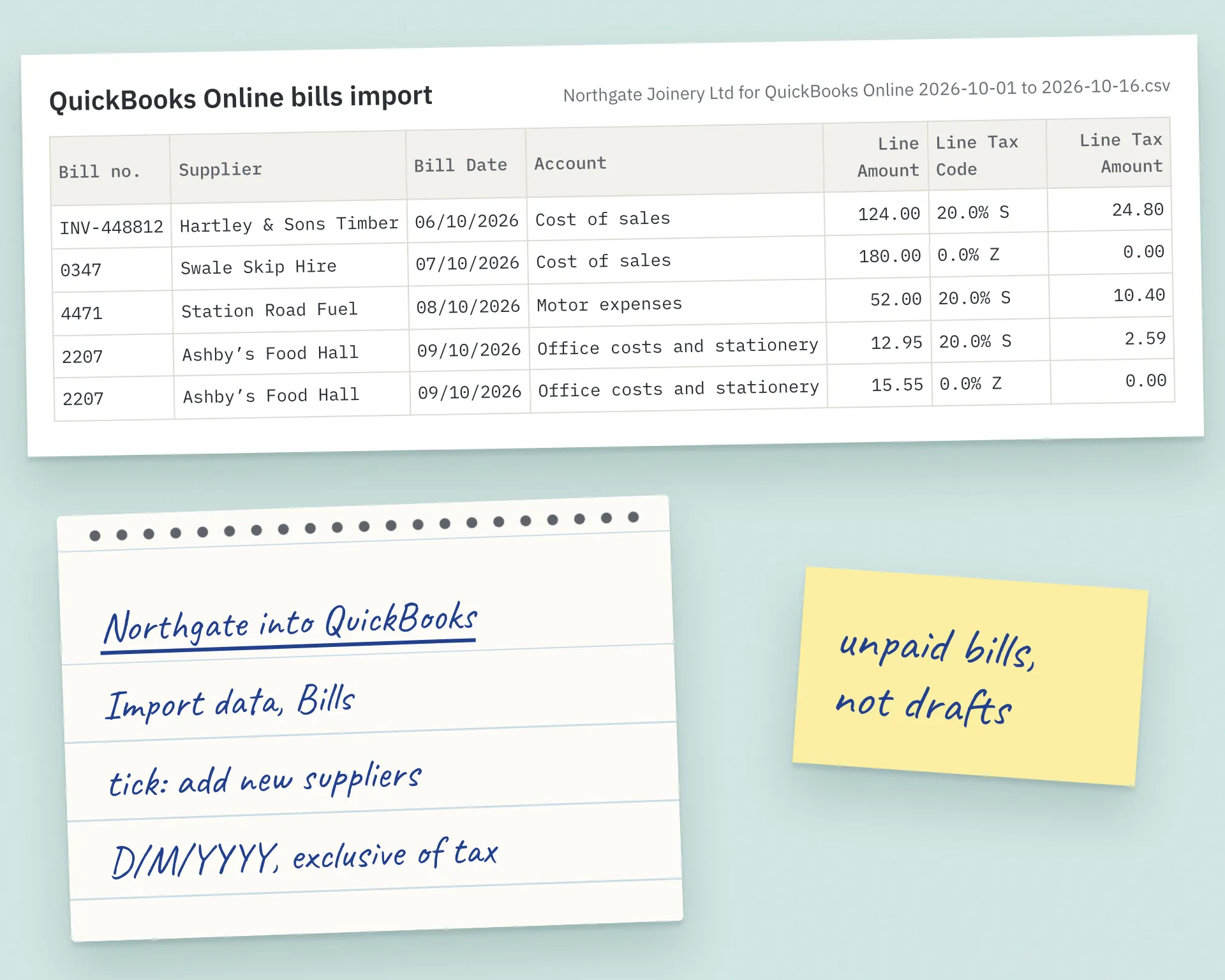
In short
- In Essentials, Plus or Advanced, go to Settings, Import data, Bills. QuickBooks recommends no more than 100 bills at a time.
- Required: Bill no., Supplier, Bill Date, Due Date, Account, Line Amount, Line Tax Code.
- Tick Add new suppliers that don’t already exist in QuickBooks. Accounts must be in QuickBooks before the import.
- Choose the date format, D/M/YYYY for UK dates, and Exclusive or Inclusive, then map the VAT codes.
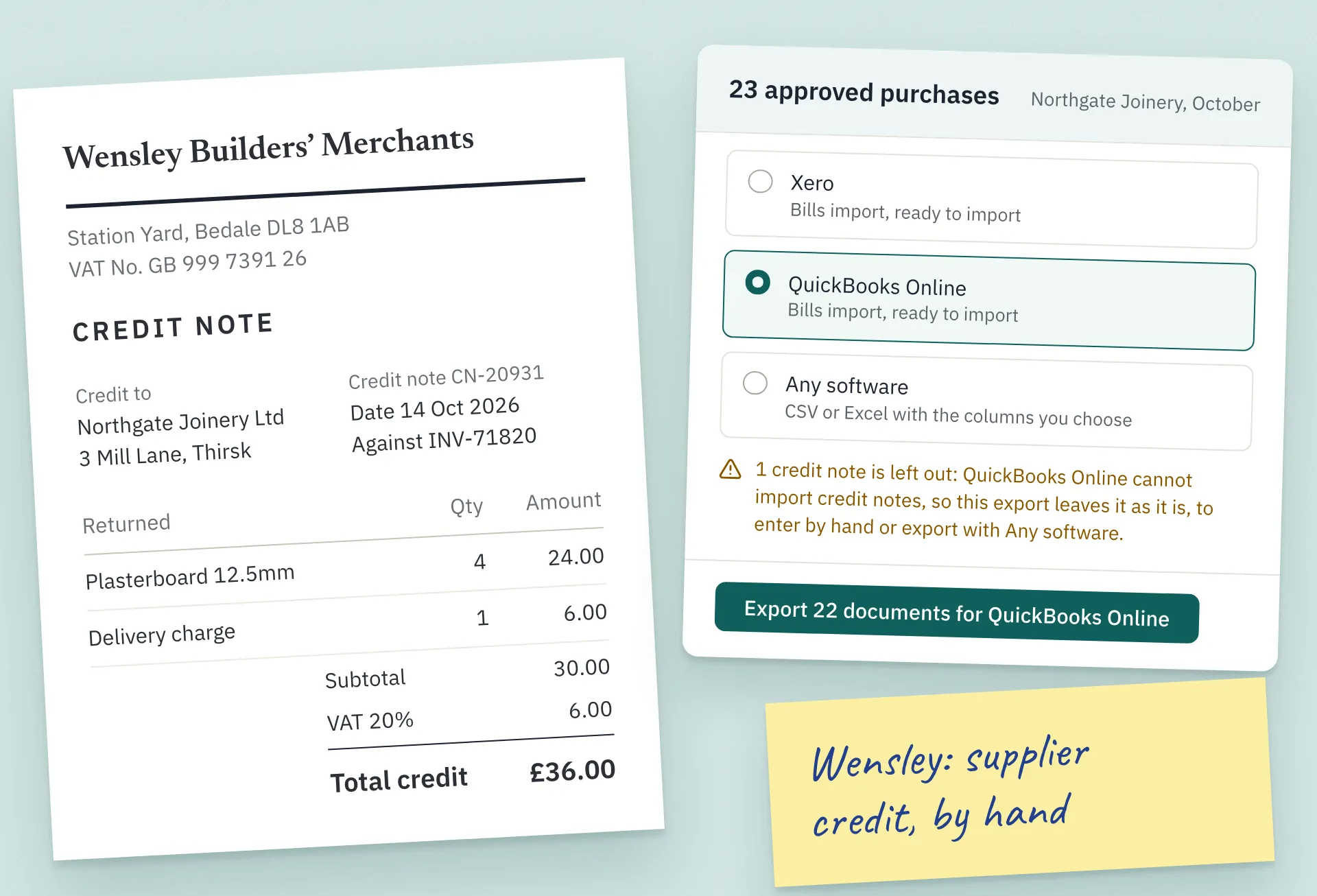
- Credit notes cannot be imported: enter them as supplier credits.
- Imported bills are unpaid bills, not drafts, so check the file before the import.
Daybook writes this bills file from a client’s approved receipts and invoices, with a line for each VAT rate at QuickBooks Online’s VAT codes. How Daybook writes the import file
Contents
How to import bills into QuickBooks Online
QuickBooks Online Essentials, Plus and Advanced import purchase bills in a batch, from one file.1
- Go to Settings and select Import data, then Bills.
- Select Browse and choose the CSV file.
- Tick Add new suppliers that don’t already exist in QuickBooks, unless every supplier is there already, and select Next.
- Select the date format the file uses, such as D/M/YYYY, and whether its amounts are Exclusive or Inclusive of VAT.
- Map the file’s columns to QuickBooks’ fields, then its VAT codes to QuickBooks’ own. Any problem with the mapping is highlighted.
- Select Start import, and read the summary.1
QuickBooks recommends importing no more than 100 bills at a time.1 In our test, the box for new suppliers was unticked to begin with, and without it QuickBooks stopped and listed the suppliers it did not have.
The QuickBooks Online bill import template
The Bills import screen offers an example data file to download. Each heading is mapped during the import, so the file’s own headings will do, but these columns are required:1
- Bill no.
- Supplier
- Bill Date
- Due Date
- Account
- Line Amount
- Line Tax Code
A bill with several lines repeats its bill no., supplier and bill date on every line. Each bill needs at least one line, and its total must be 0 or more.1
When the file gives a VAT amount, QuickBooks uses it instead of working the VAT out from the code. To keep the bill numbers in the file, turn on Custom transaction numbers: Settings, Account and settings, Sales, then Sales form content.1 In our test it was already on in a new company.
New suppliers and missing accounts
QuickBooks adds new suppliers during the import when the box is ticked. Accounts it does not add: each line’s account must already be in QuickBooks.1
In our test, accounts were found by their name. Five were missing, so QuickBooks stopped and listed them; once they were added to the chart of accounts, the same file went in.
VAT codes in the import
The file’s VAT codes need not be QuickBooks’ own: each one is mapped to a QuickBooks code during the import. With VAT turned off in QuickBooks, the file needs no VAT codes or amounts, and VAT has to be on to import VAT amounts.1
In our test, codes written as QuickBooks names them matched by themselves: 20.0% S, 0.0% Z and No VAT. The VAT amounts in the file were kept to the penny, and a receipt with lines at 20% and 0% under one bill no. became one bill with two lines.
Reading the rates from a receipt is covered in VAT on supermarket receipts.
Credit notes
The bill import does not take credit notes, and a bill’s total cannot be negative.1
Enter a supplier’s credit note as a supplier credit: select + New, then Supplier credit, choose the supplier, enter the category details and select Save and close. When you next pay that supplier’s bills, QuickBooks applies the credit by itself.2
Unpaid bills and the VAT return
QuickBooks has no draft step, unlike Xero’s import. In our test, the bills came in as unpaid bills, those past their due date showed as overdue at once, and their VAT was in the VAT report for the period of the bill date.
That follows from the VAT accounting scheme. With Standard, VAT counts from the invoice date;3 with the Cash Accounting Scheme, VAT on a purchase is reclaimed once the supplier has been paid.4
So check the file before Start import: once imported, each bill is in the books.
Bills for QuickBooks Online from Daybook
On a client’s Exports tab, choose QuickBooks Online. Daybook writes the bills file from the approved purchases, with headings QuickBooks matched by itself in our test, and lists the steps above.
- Bill no., Supplier, Bill Date, Due Date, Account, Line Description, Line Amount, Line Tax Code, Line Tax Amount and Currency, with dates written day first.
- A line for each VAT rate under the same bill no., with the VAT printed at that rate, so choose Exclusive of tax.
- The category’s name as the account, so name each category as its account is named in QuickBooks. A purchase with no category holds the export back until one is chosen.
- VAT codes 20.0% S, 5.0% R and 0.0% Z (also for a supplier set as not VAT registered), Exempt for one set as exempt, and No VAT for a supplier with no VAT number and no VAT rule that charges none.
- The printed number as the bill no. A purchase with none gets Daybook’s own reference, and when two purchases in the file share a number, Daybook’s reference is added to both, so each purchase keeps its own bill no.
- The due date as printed, or the bill’s date when none is printed.
Credit notes are left out of the file, and the Exports tab says so: enter them by hand, or export them as CSV with Any software. Over 100 bills, it suggests a shorter date range.
Exported documents are locked, so a purchase goes to QuickBooks once, unless you export it again on purpose and the export history marks a re-export. Daybook does not connect to QuickBooks: you import the file yourself.
Doing this for clients every month? Try Daybook on one client’s month: free for 14 days, no card needed.
Questions
Can you import bills into QuickBooks Online?
Yes, in Essentials, Plus and Advanced: Settings, Import data, Bills. QuickBooks recommends no more than 100 bills at a time.1
Is there a QuickBooks Online bill import template?
The Bills import screen has an example data file to download. The required columns are Bill no., Supplier, Bill Date, Due Date, Account, Line Amount, Line Tax Code.1
Can I import bills into QuickBooks Online from Excel?
QuickBooks asks for the file prepared as CSV or Excel, and its upload step asks for a .csv file, so save the sheet as CSV first.1
Can you import supplier credit notes into QuickBooks Online?
Do imported bills go into the VAT return?
Who wrote this guide?
We did, the makers of Daybook Capture. Every statement about QuickBooks comes from QuickBooks’ own help pages, listed below with the day we read them, or from our own import into a QuickBooks Online UK trial on 17 October 2026, said as such. If something has changed, write to hello@daybookcapture.co.uk and we will correct it. QuickBooks is a trade mark of Intuit Inc.; Daybook Capture is not connected with Intuit or QuickBooks.
Read next
- VAT codes for purchasesEach program’s purchase VAT codes, box 7, and the code for a supplier not VAT registered.
- Supplier credit notesWhat a valid credit note shows, the VAT on it, and how each program imports one.
- Duplicate billsWhat Xero, QuickBooks and Sage check, finding duplicates already entered, and removing them.
- How Daybook writes the import fileThe same job in Daybook Capture, for every client.
Sources
Every fact on this page was checked against these on 17 October 2026.
- Import your bills in QuickBooks Online (opens in a new tab), QuickBooks Help (UK), updated 22 May 2026.
- Enter supplier credits and refunds in QuickBooks Online (opens in a new tab), QuickBooks Help (UK), updated 22 September 2026.
- Getting started with VAT in QuickBooks (opens in a new tab), QuickBooks Help (UK), updated 14 August 2026.
- VAT Cash Accounting Scheme (opens in a new tab), GOV.UK.