
Importing purchase invoices into Sage Accounting.
Sage Accounting imports purchase invoices from a CSV file as quick entries. This guide shows how to import purchase invoices into Sage Accounting: the quick entry template, supplier references, ledger accounts, VAT rates by name, credit notes, and what to do with the originals.
Last updated
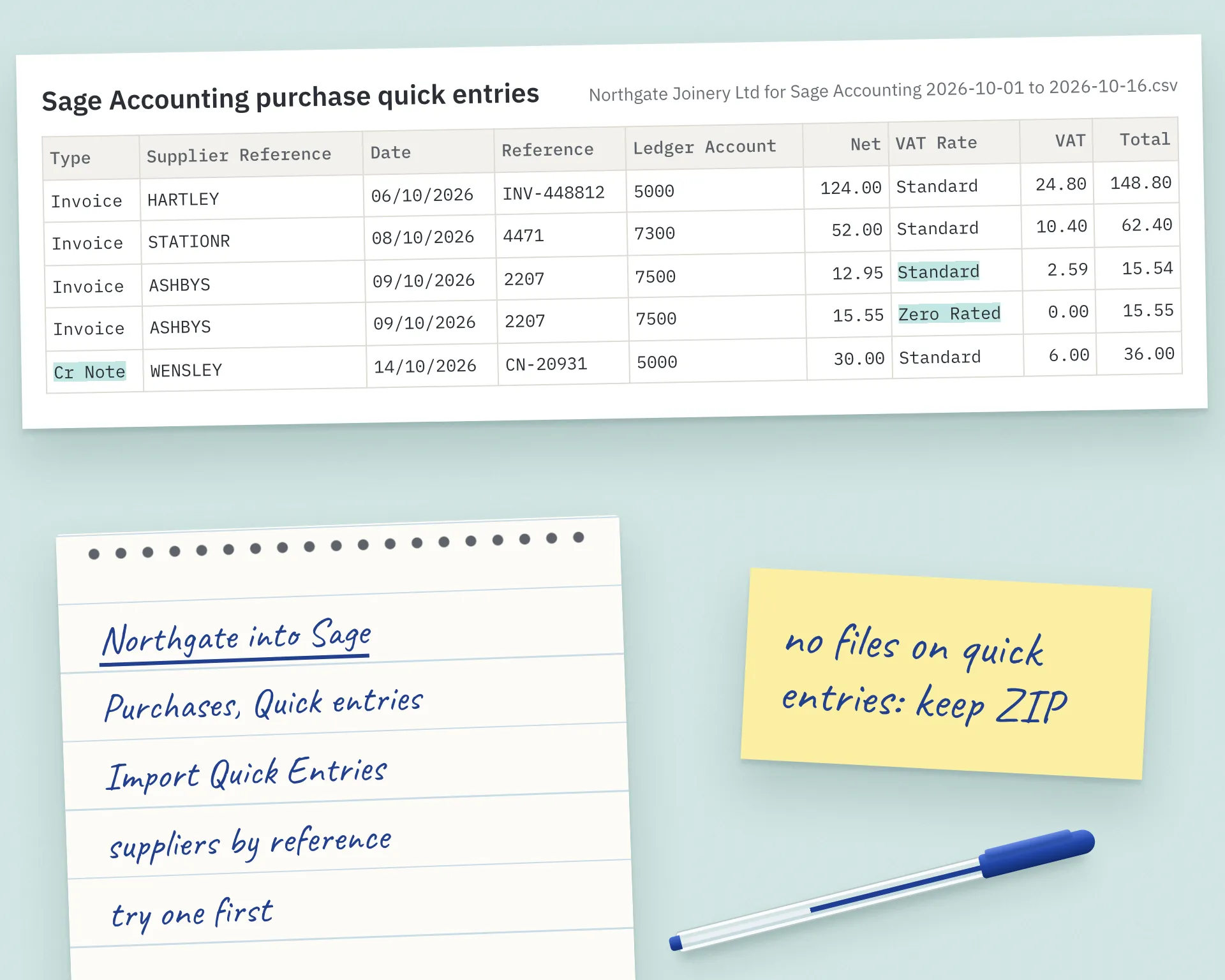
In short
- Purchases, Quick entries, Import Quick Entries, from Sage’s CSV template, up to 0.5MB a file.
- Suppliers by their reference, up to 10 characters, and they must exist first.
- One ledger account and one VAT rate a row, the rate by name: Standard, Zero Rated, Lower Rate. In Daybook’s file, a supplier set as not VAT registered goes in at Zero Rated, an exempt one at Exempt, and one with no VAT number and no VAT rule that charges none at No VAT.
- Credit notes are Cr Note. Foreign currency cannot be imported.
- Quick entries take no files: keep the originals with the client’s records.
- No undo: delete each quick entry while it is unpaid and not on a VAT Return.
Daybook writes this quick entries file from a client’s approved purchases, on Sage’s template, with a quick entry for each VAT rate. How Daybook writes the import file
Contents
- Purchase quick entries
- How to import purchase quick entries into Sage Accounting
- The purchases quick entry template
- Supplier references
- Ledger accounts
- VAT rates on quick entries
- Supplier credit notes
- Paying quick entries
- The originals
- When an import goes wrong
- Purchase quick entries for Sage Accounting from Daybook
- Questions
- Sources
Purchase quick entries
Sage Accounting imports purchase invoices from a CSV file as quick entries: invoices and credit notes for one or more suppliers entered together, recording the values of invoices raised elsewhere.1,4
A quick entry cannot be printed, and cannot carry a file: to attach the original, or for an overseas supplier, Sage points to full purchase invoices or purchase credit notes instead.1,4 Foreign currency and cross-border invoices cannot be imported as quick entries.1
How to import purchase quick entries into Sage Accounting
- From the Purchases menu, select Quick entries.
- Click the arrow next to the New Quick Entry button and select Import Quick Entries.
- Download the template CSV file from the link, and fill it in.
- Back in Import Quick Entries, select Choose file, pick the CSV file, then Upload.
First, the business needs its Accounts Start Date and VAT scheme set, and each supplier must already be a contact. Sales and purchases go in separate files, with the template’s column headings kept as they are.1 A file can be up to 0.5MB; split a larger one.2
The purchases quick entry template
The header row must use Sage’s own headings. For a VAT registered business the columns are, in order:2
- Type: Required. Invoice or Cr Note.
- Supplier Reference: Required. The supplier’s account reference, up to 10 characters; the contact must exist.
- Date: Required. The transaction date.
- Supplier Name: Up to 50 characters.
- Reference: Required. Up to 25 characters, such as the invoice number.
- Ledger Account: Required. The ledger account’s code, up to 8 digits.
- Details: Only the first 25 characters are imported.
- Net: Required. Up to 8 digits and 2 decimal places.
- VAT Rate: Required. Standard, Zero Rated, Lower Rate, Exempt or No VAT.
- VAT: Required.
- Total: Required.
- Analysis Type 1 to 3: A name set under Settings, Analysis Types, such as a department.
A business that is not VAT registered has a template without Net, VAT Rate and VAT, with only the Total.2 Sage’s file format table shows the date as DD-MM-YYYY, while its import errors article asks for dd/mm/yyyy; the errors article also says to save the file as CSV, not XLS.2,3
Supplier references
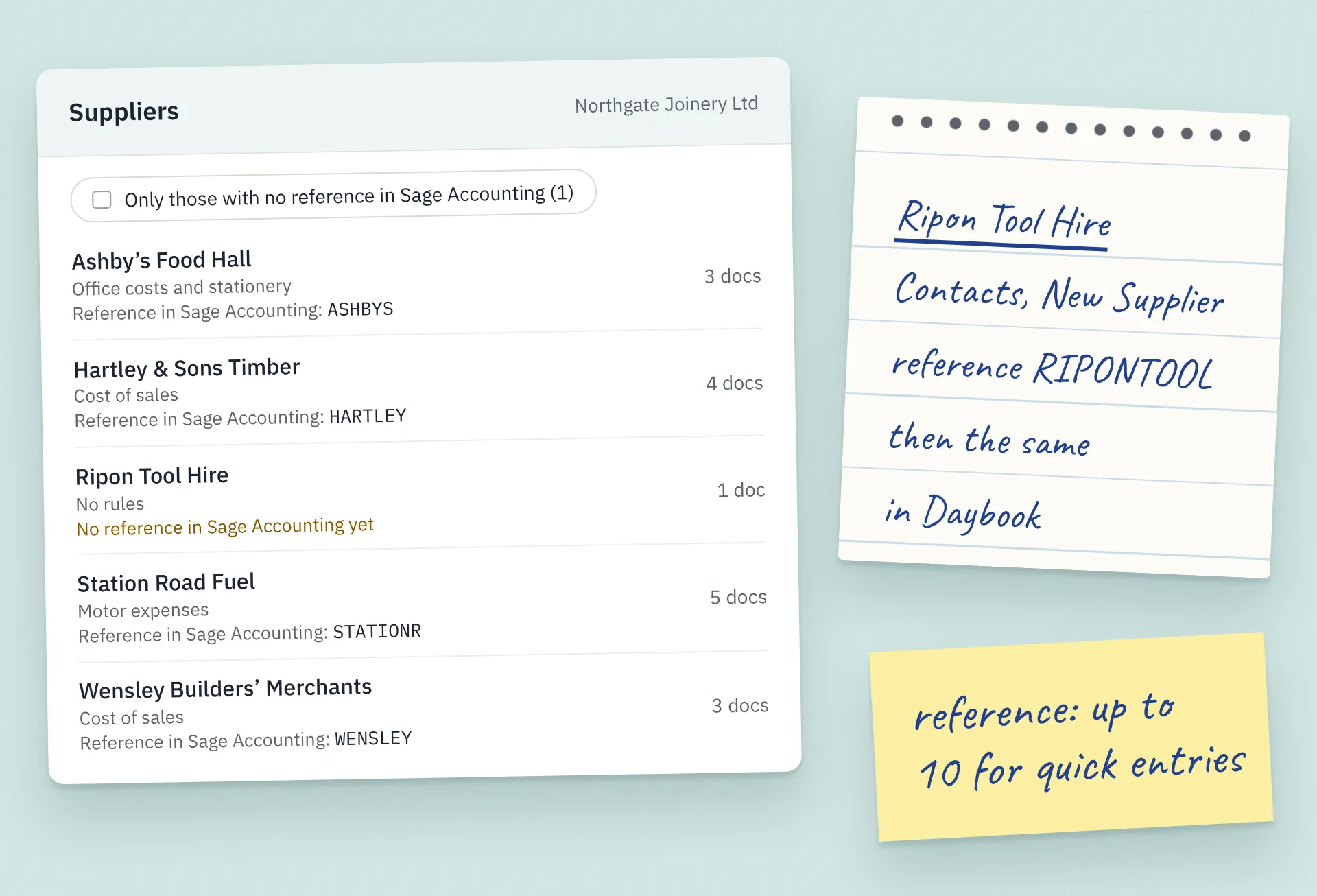
Sage finds each supplier by its Supplier Reference, not its name, and the contact must already be in the contacts list.2 Suppliers can be imported first from their own CSV file (Contacts, the arrow next to New Supplier, Import Suppliers), where each contact needs a reference.8
A contact’s reference may have up to 25 characters, unique to it,9 but the quick entry file takes no more than 10,2 so keep suppliers’ references to 10 characters for them to be used in quick entries.
Ledger accounts
VAT rates on quick entries
The VAT rate goes by its name: Standard, Zero Rated, Lower Rate, Exempt or No VAT, with the Net, the VAT and the Total each in its own column.2 Each row has one ledger account and one rate, so a receipt with goods at 20% and 0% goes in as two quick entries, one at each rate.
Entered by hand, Sage calculates the VAT from the net or the total and the rate.5 Its pages do not say whether an import keeps the VAT given in the file or works it out again, so check the VAT of the first import against the receipts. Reading the rates from a till receipt is covered in VAT on supermarket receipts.
Supplier credit notes
Paying quick entries
An imported quick entry invoice is unpaid until a supplier payment is posted against it: Banking, the bank account, New Entry, Purchase / Payment, then on the Supplier Payment tab choose the supplier, enter the date and amount paid, and tick the quick entry.6 A receipt paid by card on the day is paid this way too.
The originals
Quick entries take no files.4 Purchase invoices and credit notes entered in full can hold up to 10 attachments of 2.5MB each,10 and Sage’s AI Capture creates a draft purchase invoice from each uploaded document,11 so sending the originals there would add a second purchase. After a quick entries import, keep the originals with the client’s records.
When an import goes wrong
A purchase quick entry can be deleted only when it has no allocations, is not paid and is not on a VAT Return: go to Purchases, Quick entries, open it, select the delete icon and Save.7 Sage’s pages describe no way to undo an import or to delete several quick entries at once, so try a few rows first.
Purchase quick entries for Sage Accounting from Daybook
On a client’s Exports tab, choose Sage Accounting, or set Sage Accounting as the client’s accounting software and it is chosen for you. Daybook writes the quick entries file from the approved documents, with the steps above beside it.
- The headings of Sage’s template for a VAT registered business, in its order, with dates as dd/mm/yyyy.
- Invoice or Cr Note on the supplier’s reference, kept on Daybook’s Suppliers tab: one longer than 10 characters is refused there, never cut.
- A quick entry for each VAT rate, the rate by its name, with the net, VAT and total as read; credit notes as printed.
- The category’s code as the ledger account: a category without one stops the export, as every quick entry needs one.
- The document’s number as the Reference, shortened to 25 characters where it is longer, still unique in the file, and Details of 25 characters.
A document whose supplier has no reference, one in another currency, and one with a VAT rate Daybook could not tell or other than 20%, 5% or 0% are left out and named, with a list to enter by hand. Sage’s pages do not say whether two quick entries may share a reference; Daybook gives both quick entries of a receipt its number. Before the export, Before importing lists the ledger accounts in the file and the suppliers no earlier export carried, and a client’s first Sage Accounting file suggests exporting a single day first.
The originals come as a ZIP, each named with its date, supplier, total and Daybook reference, to keep with the client’s records. Daybook does not connect to Sage: you import the file yourself. For the desktop program, see importing purchase invoices into Sage 50.
Doing this for clients every month? Try Daybook on one client’s month: free for 14 days, no card needed.
Questions
Can you import purchase invoices into Sage Accounting?
Yes, as quick entries from a CSV file: Purchases, Quick entries, then Import Quick Entries from the arrow next to New Quick Entry.1
Do suppliers have to exist before importing quick entries?
Yes. Each row names the supplier by its reference, and the contact must already be in Sage Accounting.2
Can you attach a receipt to a quick entry in Sage Accounting?
No. To attach a file, Sage points to purchase invoices or purchase credit notes instead.4
Can you import foreign currency purchases as quick entries?
No. Enter foreign currency and cross-border invoices by hand as regular invoices.1
How do I delete imported quick entries in Sage Accounting?
One at a time, from Purchases, Quick entries, while each is unpaid, unallocated and not on a VAT Return.7
Who wrote this guide?
We did, the makers of Daybook Capture. Every statement about Sage Accounting comes from Sage’s UK knowledge base, listed below with each article’s last modified date, which we read on 18 October 2026; where Sage does not say something, the guide says so. If something has changed, write to hello@daybookcapture.co.uk and we will correct it. Sage is a trade mark of The Sage Group plc; Daybook Capture is not connected with Sage.
Read next
- VAT codes for purchasesEach program’s purchase VAT codes, box 7, and the code for a supplier not VAT registered.
- Supplier credit notesWhat a valid credit note shows, the VAT on it, and how each program imports one.
- Duplicate billsWhat Xero, QuickBooks and Sage check, finding duplicates already entered, and removing them.
- How Daybook writes the import fileThe same job in Daybook Capture, for every client.
Sources
Every fact on this page was checked against these on 27 October 2026.
- Import purchase invoices as quick entries (opens in a new tab), Sage Accounting knowledge base, last modified 7 July 2026.
- File format for purchases quick entry (opens in a new tab), Sage Accounting knowledge base, last modified 25 September 2024.
- Common import errors (opens in a new tab), Sage Accounting knowledge base, last modified 7 October 2026.
- Purchase quick entries (opens in a new tab), Sage Accounting knowledge base, last modified 1 July 2026.
- Add a Purchase quick entry (opens in a new tab), Sage Accounting knowledge base, last modified 1 July 2026.
- Pay purchase quick entries (opens in a new tab), Sage Accounting knowledge base, last modified 1 July 2026.
- Delete a purchase quick entry (opens in a new tab), Sage Accounting knowledge base, last modified 8 July 2026.
- Import supplier contacts (opens in a new tab), Sage Accounting knowledge base, last modified 30 June 2026.
- Format your customers and suppliers import file (opens in a new tab), Sage Accounting knowledge base, last modified 8 October 2026.
- Add attachments (opens in a new tab), Sage Accounting knowledge base, last modified 22 January 2026.
- Purchase automation (AI Capture) (opens in a new tab), Sage Accounting knowledge base, last modified 27 August 2026.